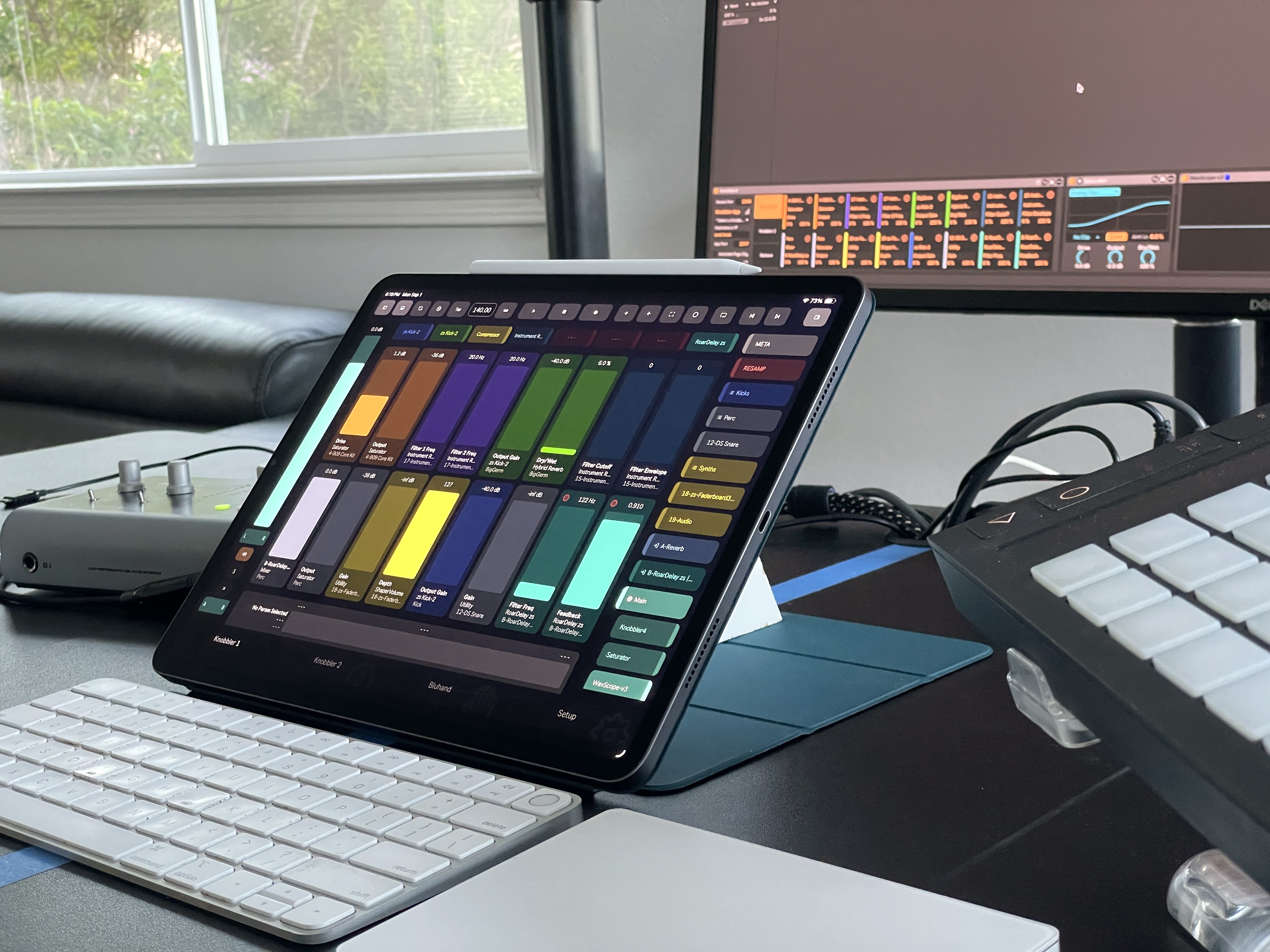
 Knobbler4
 Visit #knobbler on Discord
Push 3 Standalone
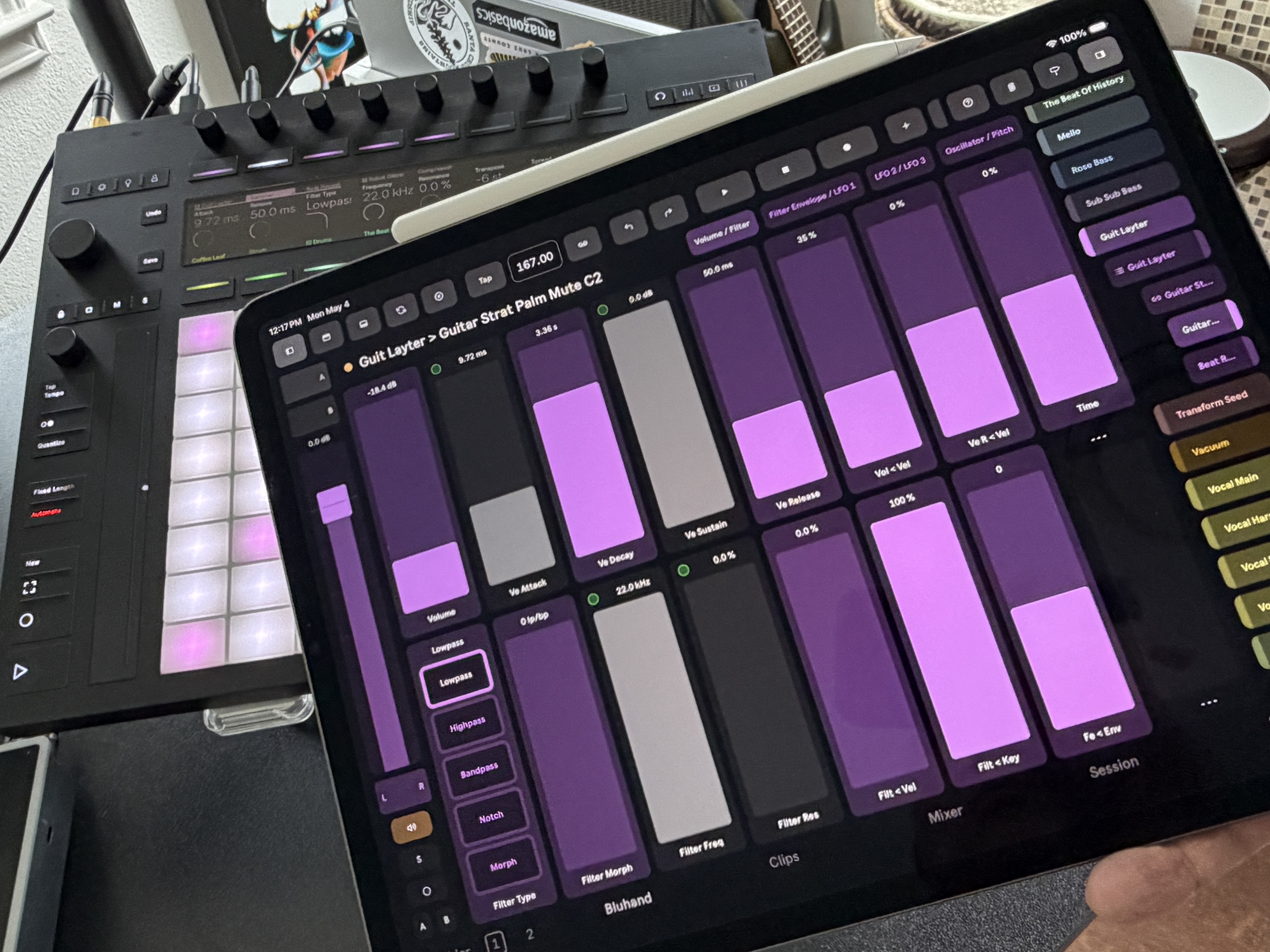
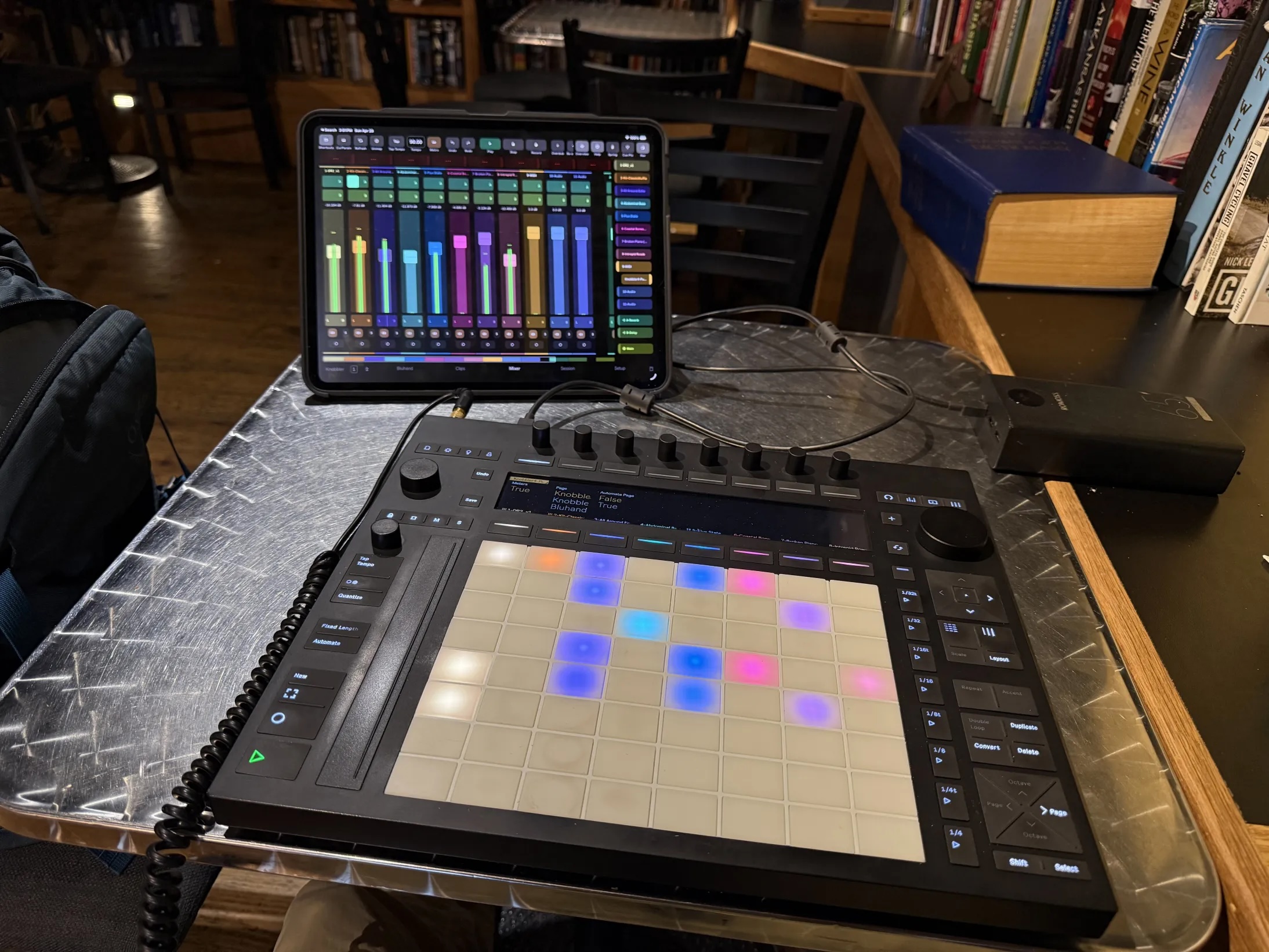
Knobbler runs on the Push 3 Standalone (P3SA) — no computer required
What you can do
Pair Knobbler with P3SA and you can:
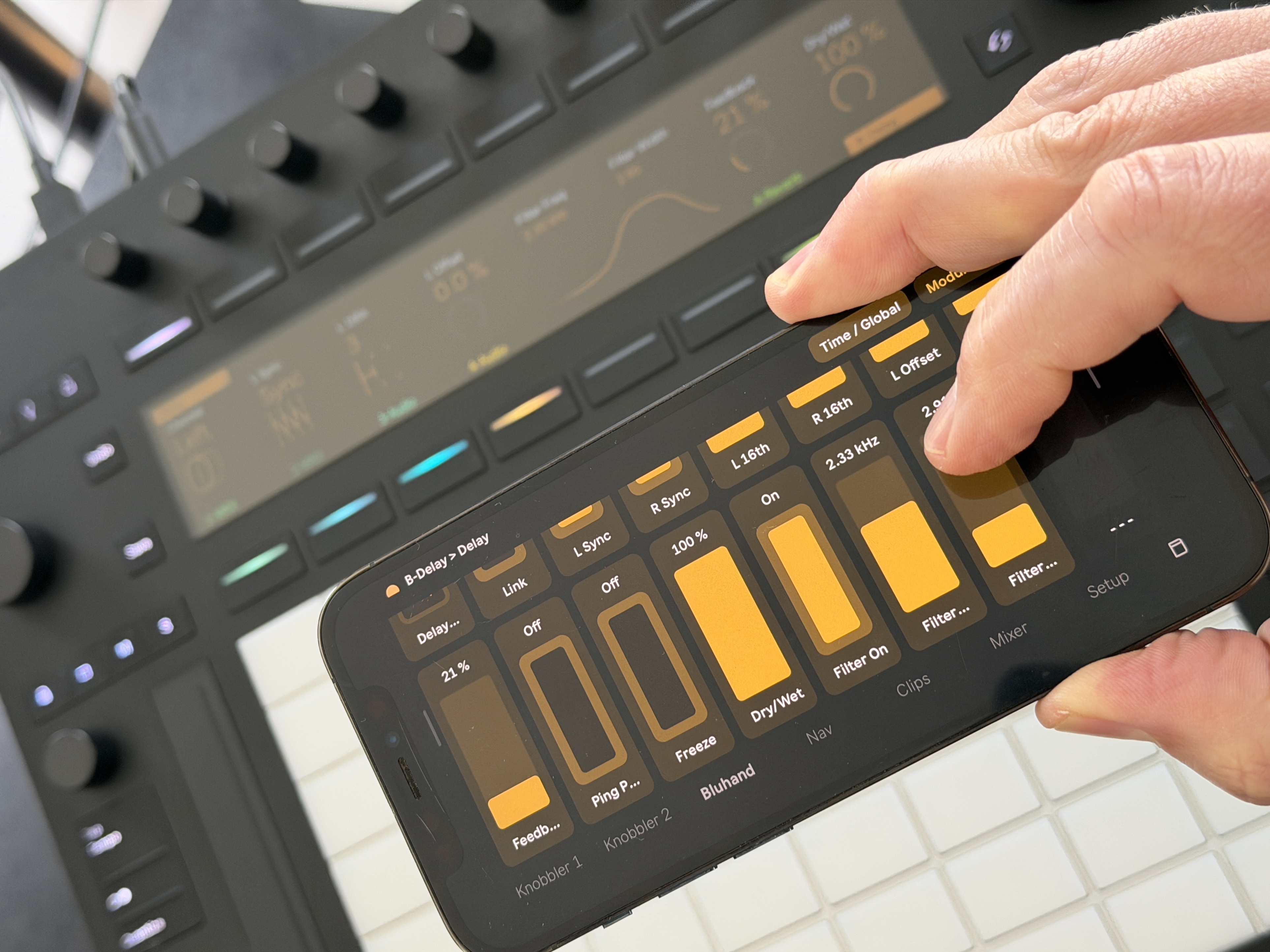
- Control parameters from anywhere in your Live Set on two pages of 16 auto-named, auto-colored, multitouch sliders, or combine adjacent sliders into X-Y controls.
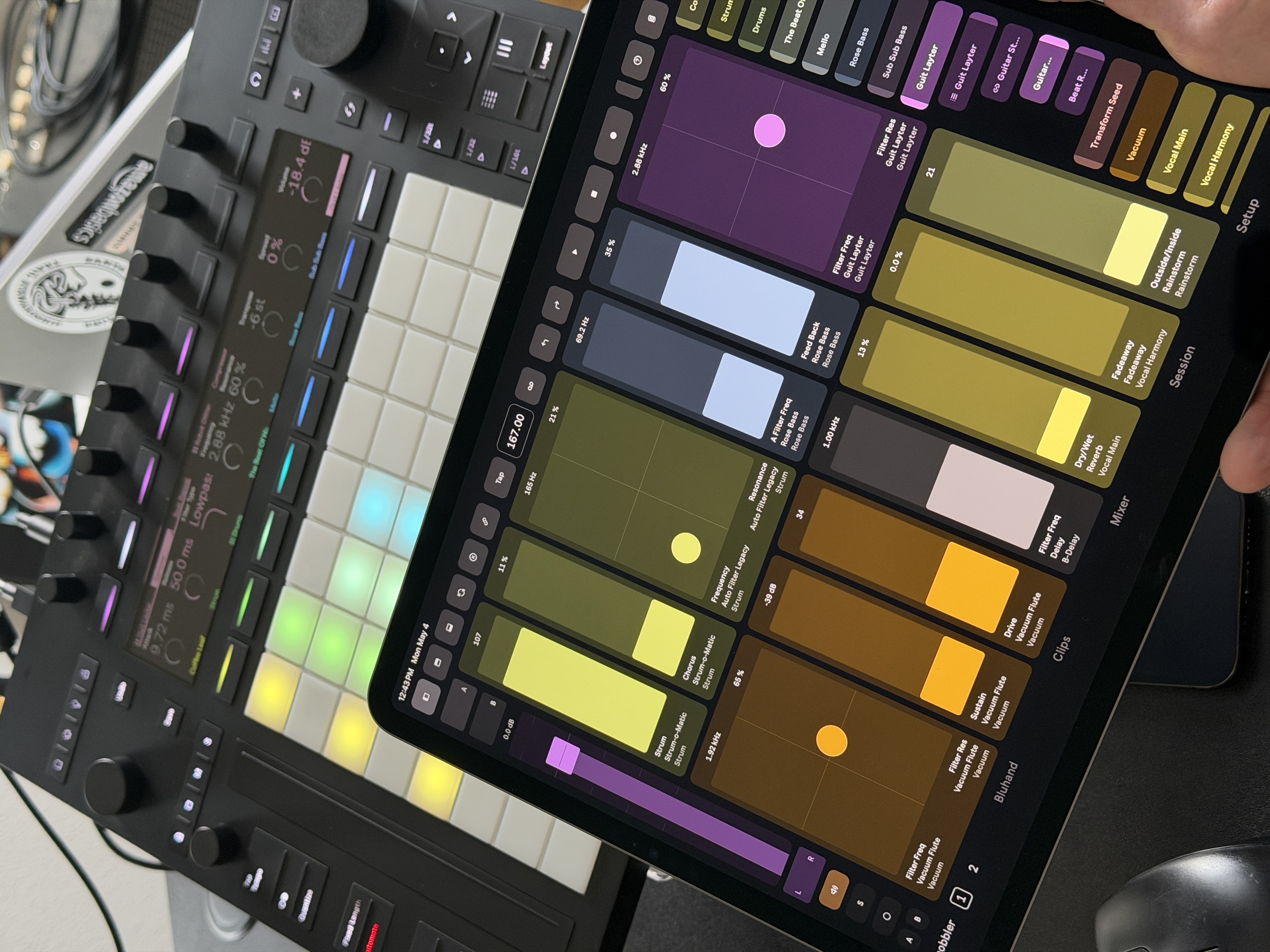
- Navigate your set and see and adjust all of the parameters of the currently selected device — on a phone or a tablet where you are playing or singing.
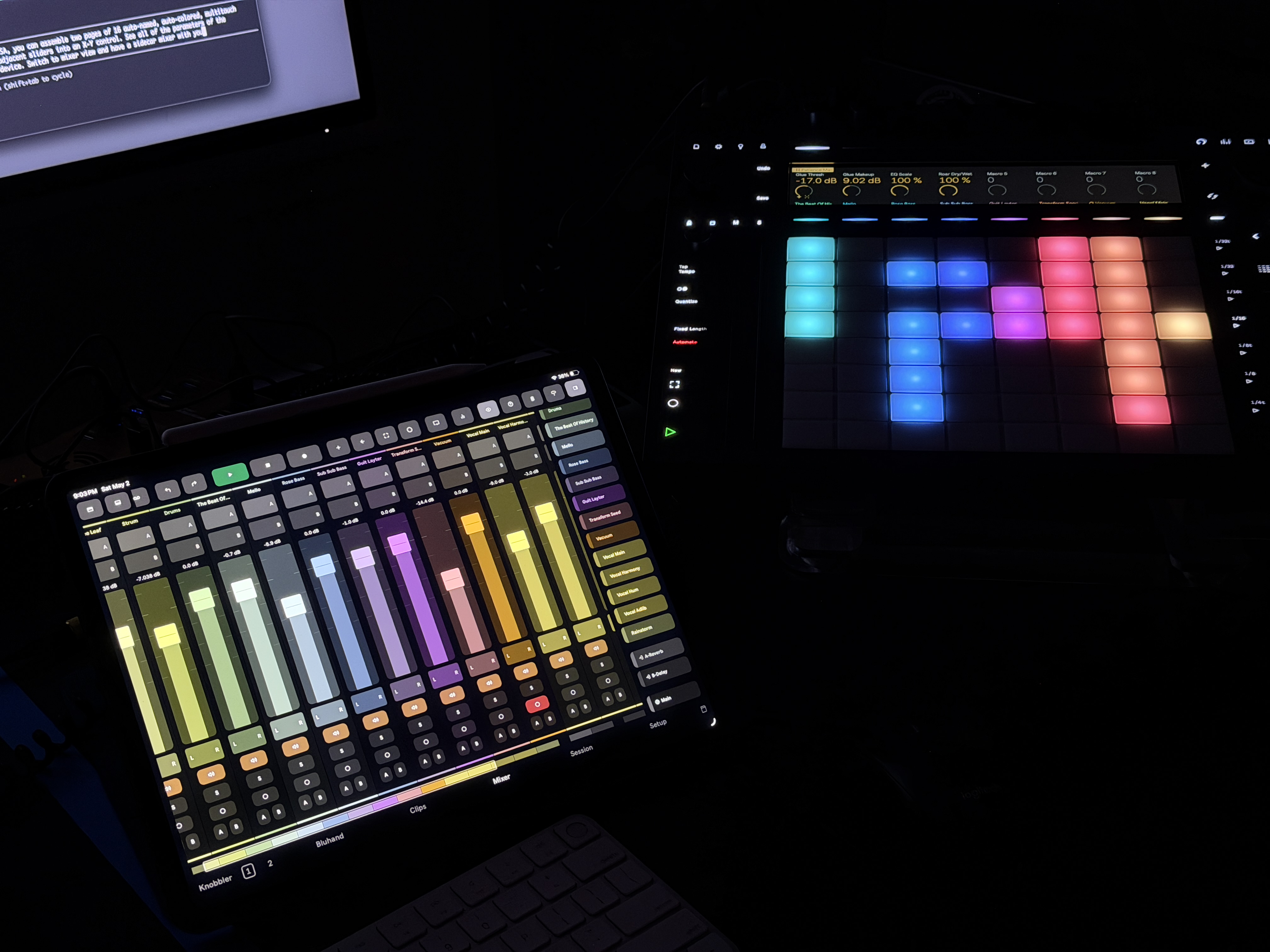
- Switch to mixer view for a sidecar mixer that travels with you.
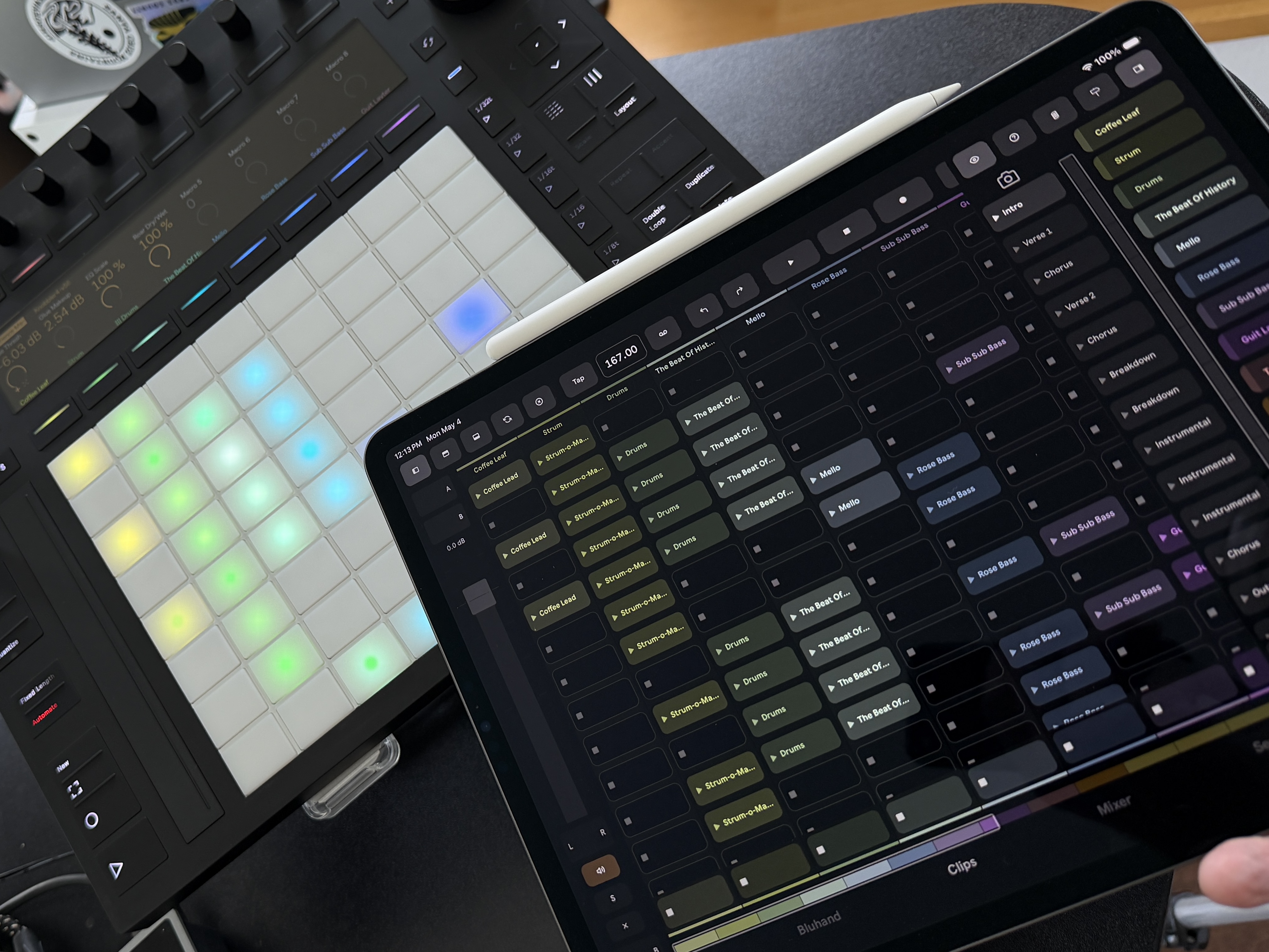
- Expand your clips view with clip names and a smooth panning surface that's more satisfying than tapping cursor keys.
- Special on the Phone: Navigate all of your tracks, with a mixer strip for the current track. Jump directly to any device's parameters in a track or chain.
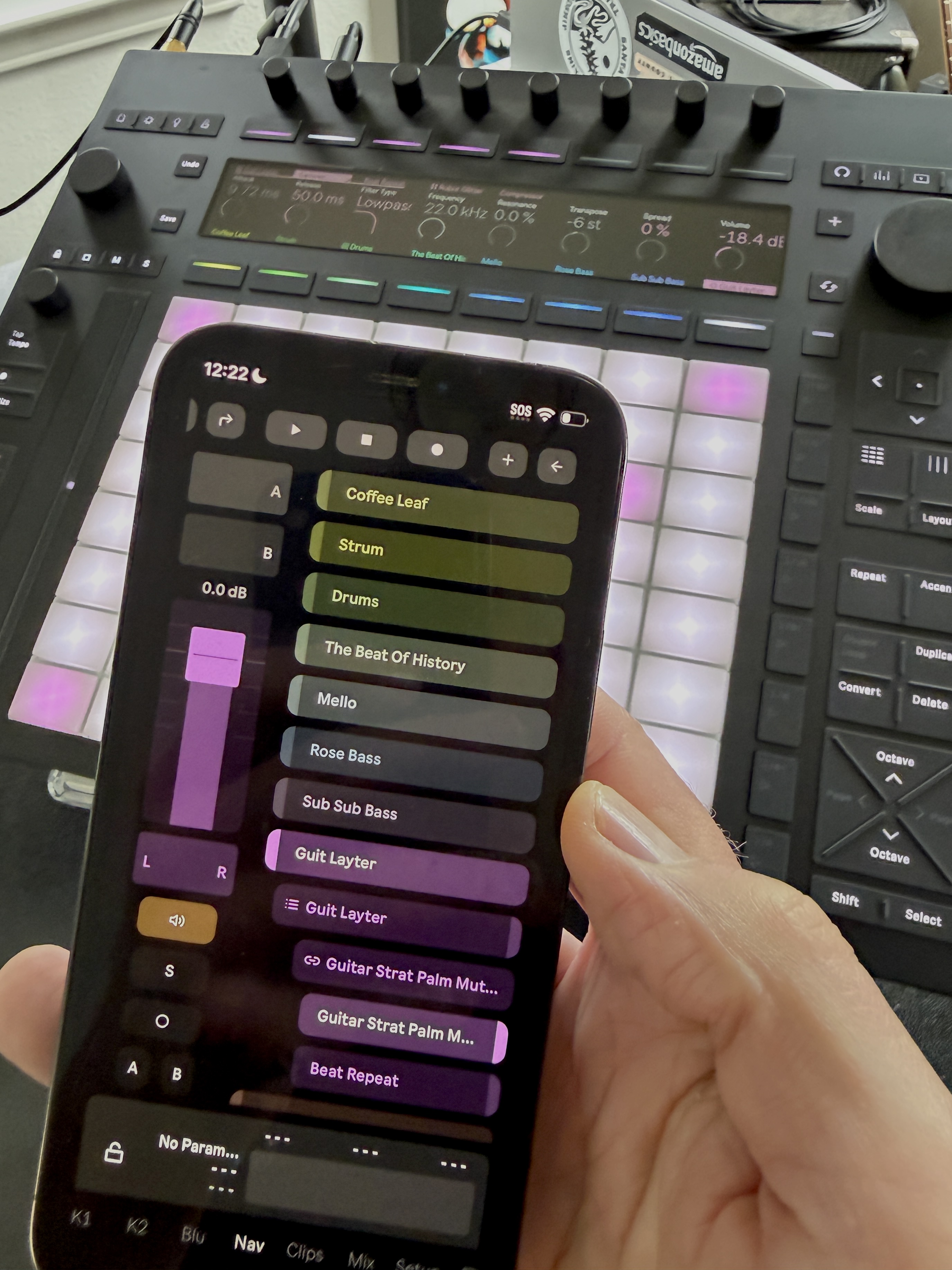
- Keep the current track's mixer strip docked on the left of most pages, when you want it.
- Enable and disable real-time level meters.
- Record and overdub automation directly on the app.
Files
When you download the Knobbler4 release, the .zip contains two .amxd files:
Knobbler4-vXX.amxd— for your computer.Knobbler4-vXX-Push3Standalone.amxd— for the Push 3 Standalone.
Installing
In Ableton Live, drag Knobbler4-vXX-Push3Standalone.amxd onto your Push 3 in Ableton, then add it to the Main track of the set or template you want to use on Push.
Connecting
The Push 3 Standalone does not support Knobbler's auto-discovery, so you'll connect manually. The app's Setup tab has a Push 3 Standalone helper card with one-tap shortcuts for the two common addresses:
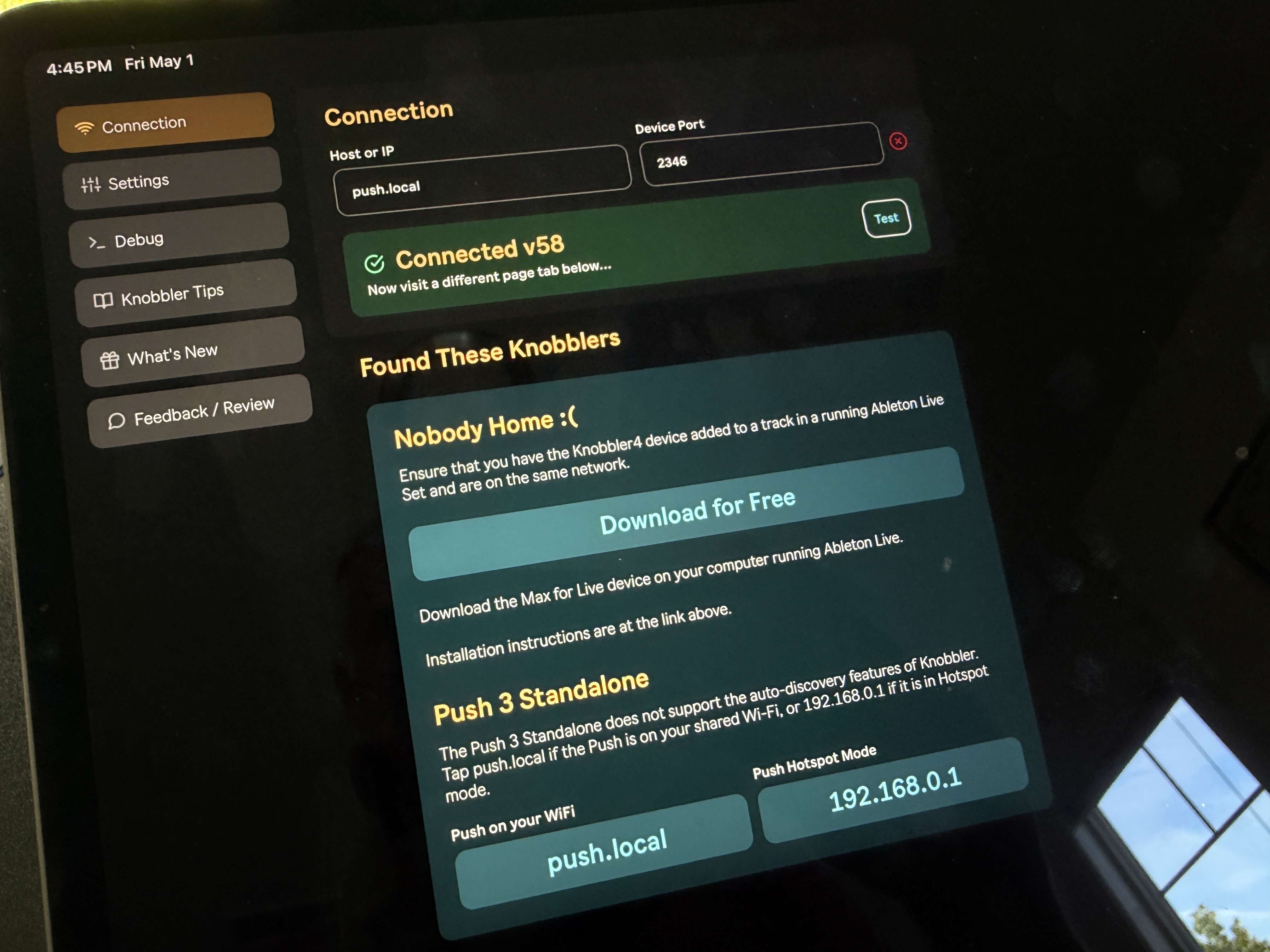
- Open the Knobbler app on your phone or tablet and go to the Setup tab.
- In the Push 3 Standalone card, tap the address that matches your situation:
push.local— both your P3SA and tablet are on the same shared WiFi network.192.168.0.1— your tablet is connected to the Push's WiFi hotspot.
- Confirm the port is
2346. - You should see "Connected".
Multiple Knobbler devices, including Push 3 Standalone
If you want to run more than one Knobbler instance (for example, to control your set from two tablets), each instance needs its own receive port (e.g. 2346 for the first instance, 2347 for the second). Then point each app at the matching port in its Setup tab.
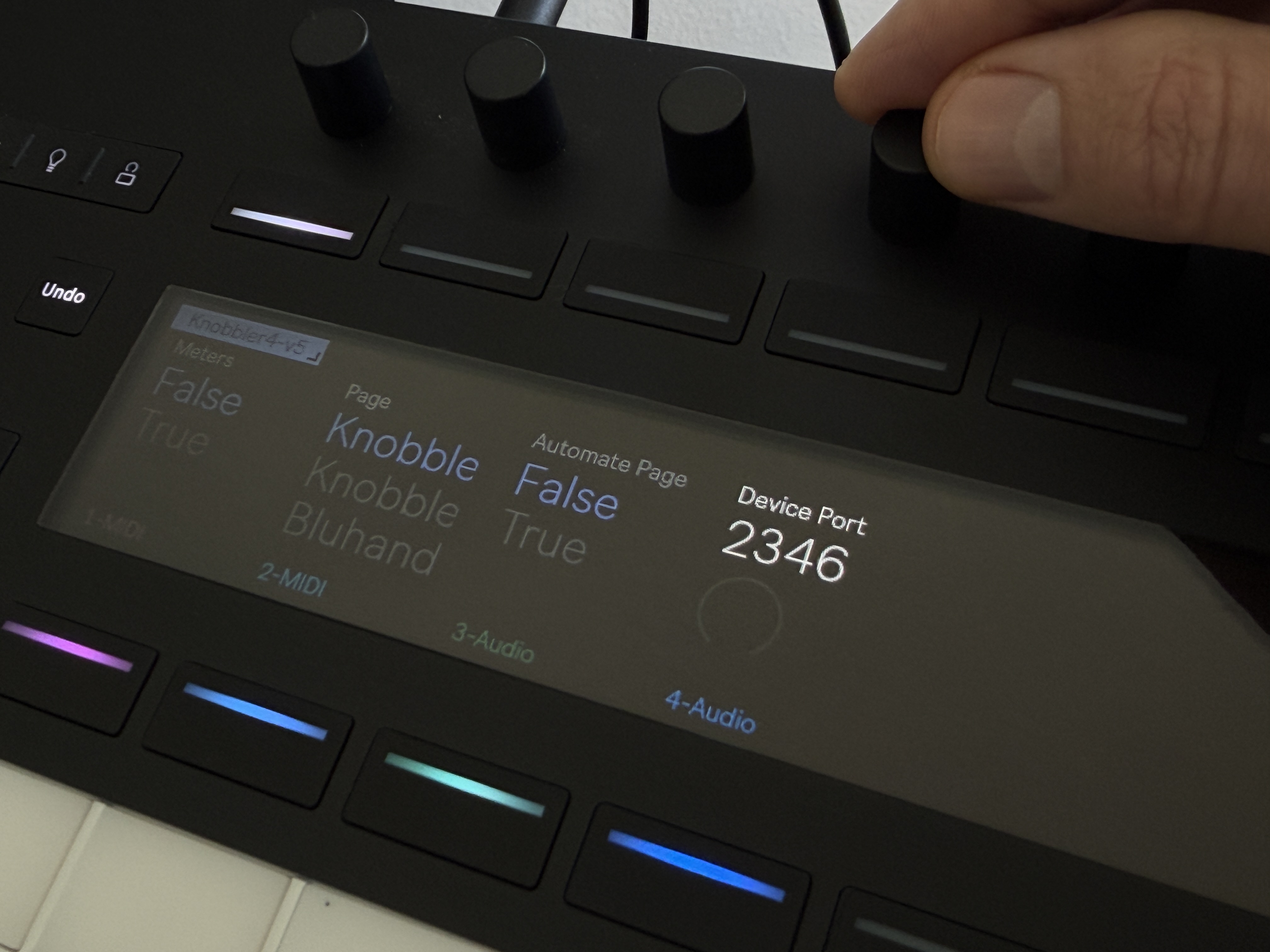
The Knobbler4 device exposes the receive port as a Live parameter named Device Port, so you can change it from anywhere you can change Live parameters — even on Push 3 Standalone.
If something doesn't work, see Troubleshooting, or email [email protected] with as much detail as you can gather.