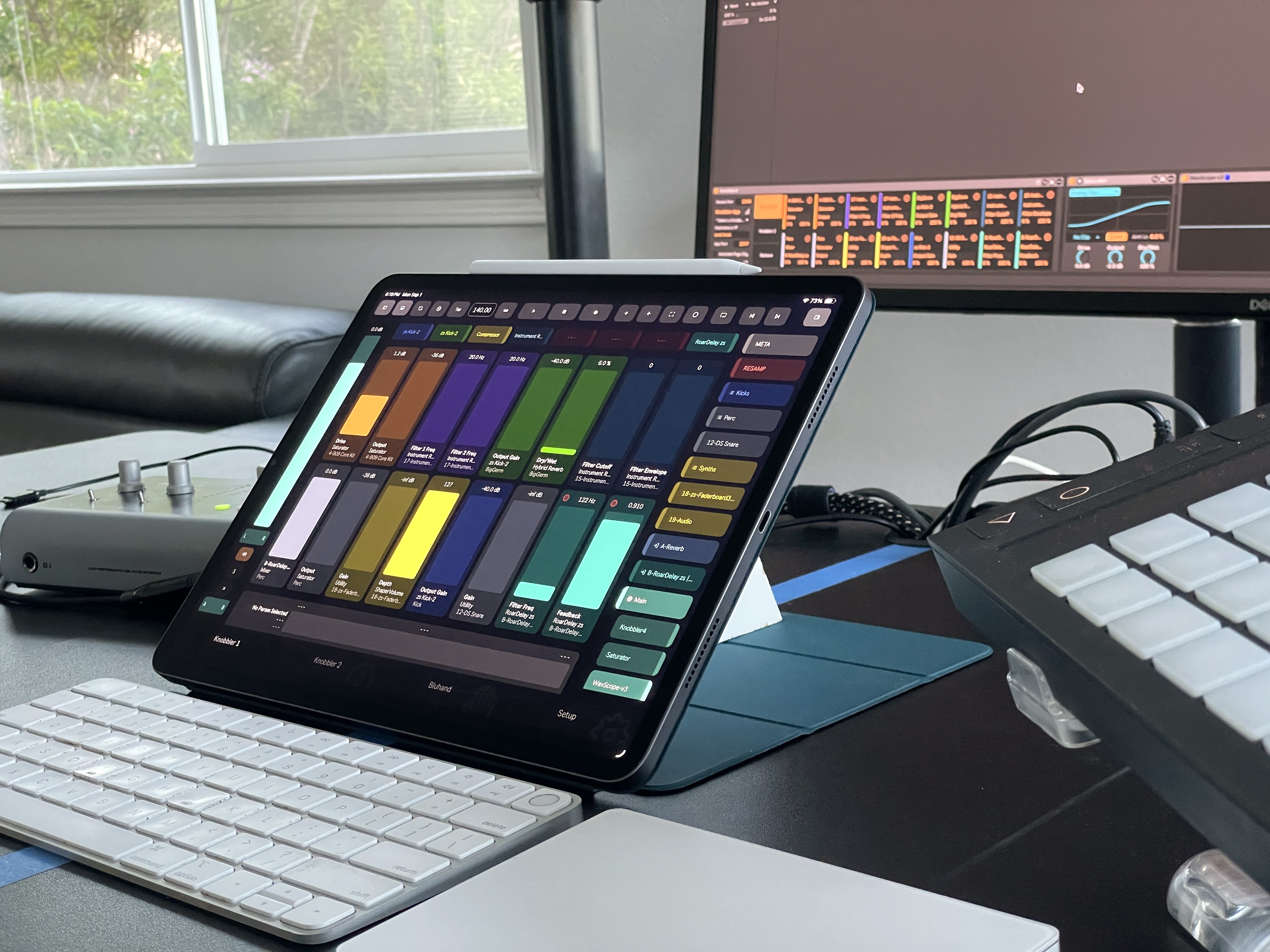
 Knobbler4
 Visit #knobbler on Discord
Mapping Mixer & Bluhand Controls to Knobbler Sliders
Mapping Mode lets you take any mixer control (volume, pan, sends, mute, crossfader) or any Bluhand device parameter and assign it to a Knobbler slider. This gives you a single, custom page of the exact controls you reach for most — a track's volume next to a reverb's decay next to a synth's filter cutoff — all on one screen.
Requires Knobbler4 device v60 or later and a compatible app version.
How It Works
You pick a source (the control you want to map) and a target (the Knobbler slider it should live on). The app walks you through it.
1. Tap the Map button
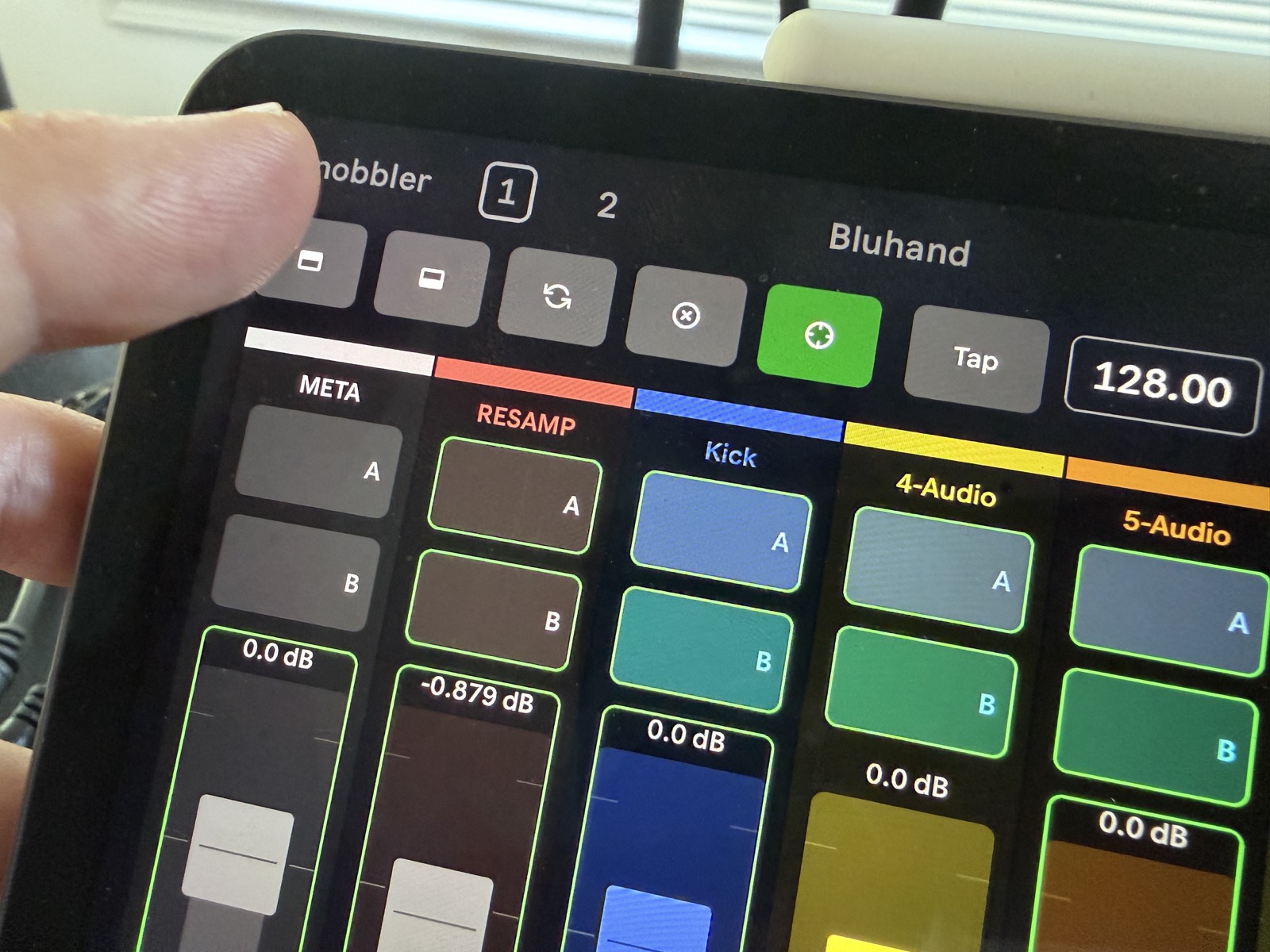
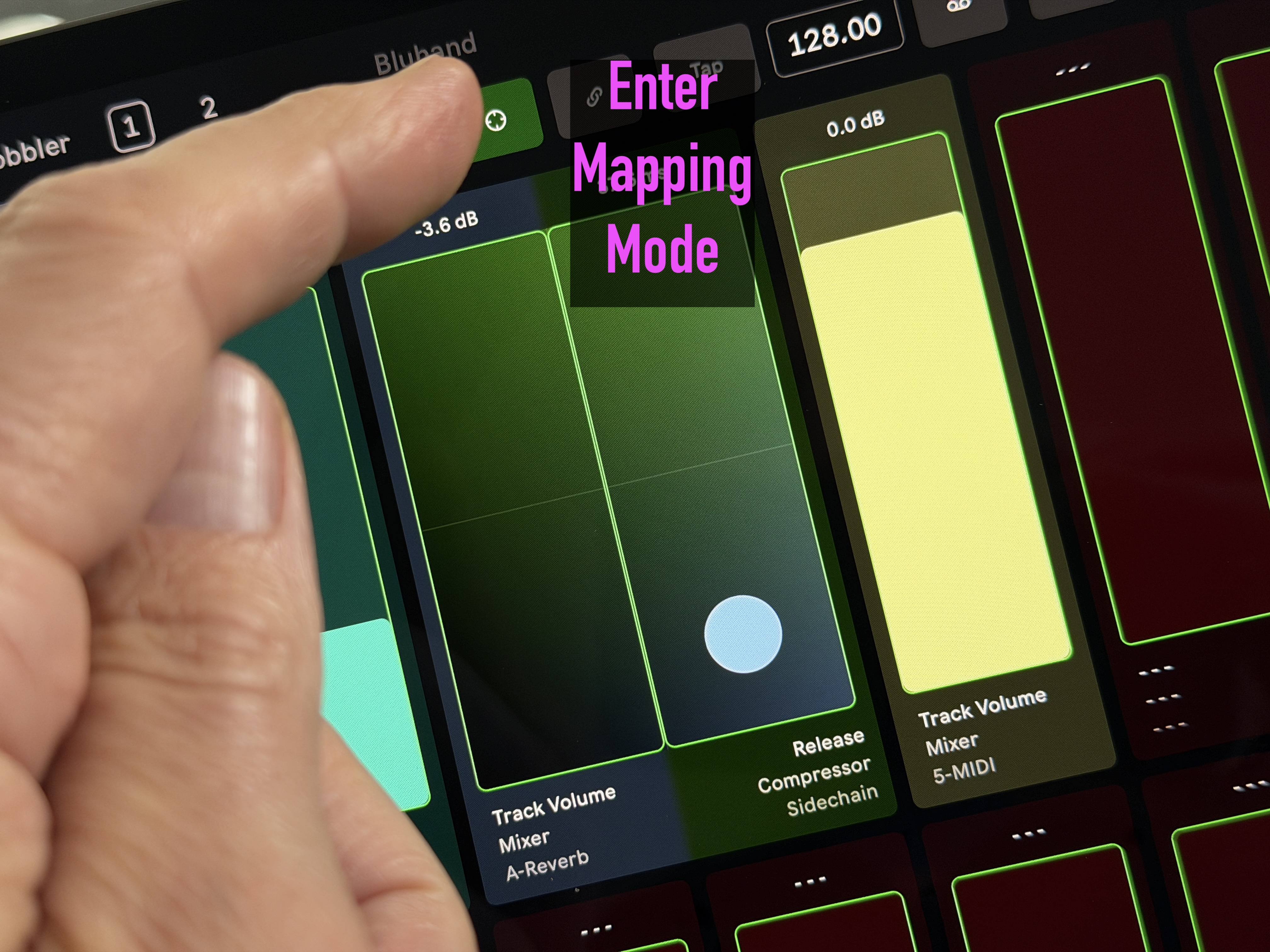
On any page, tap the crosshair (⊕) button in the toolbar to enter Mapping Mode.
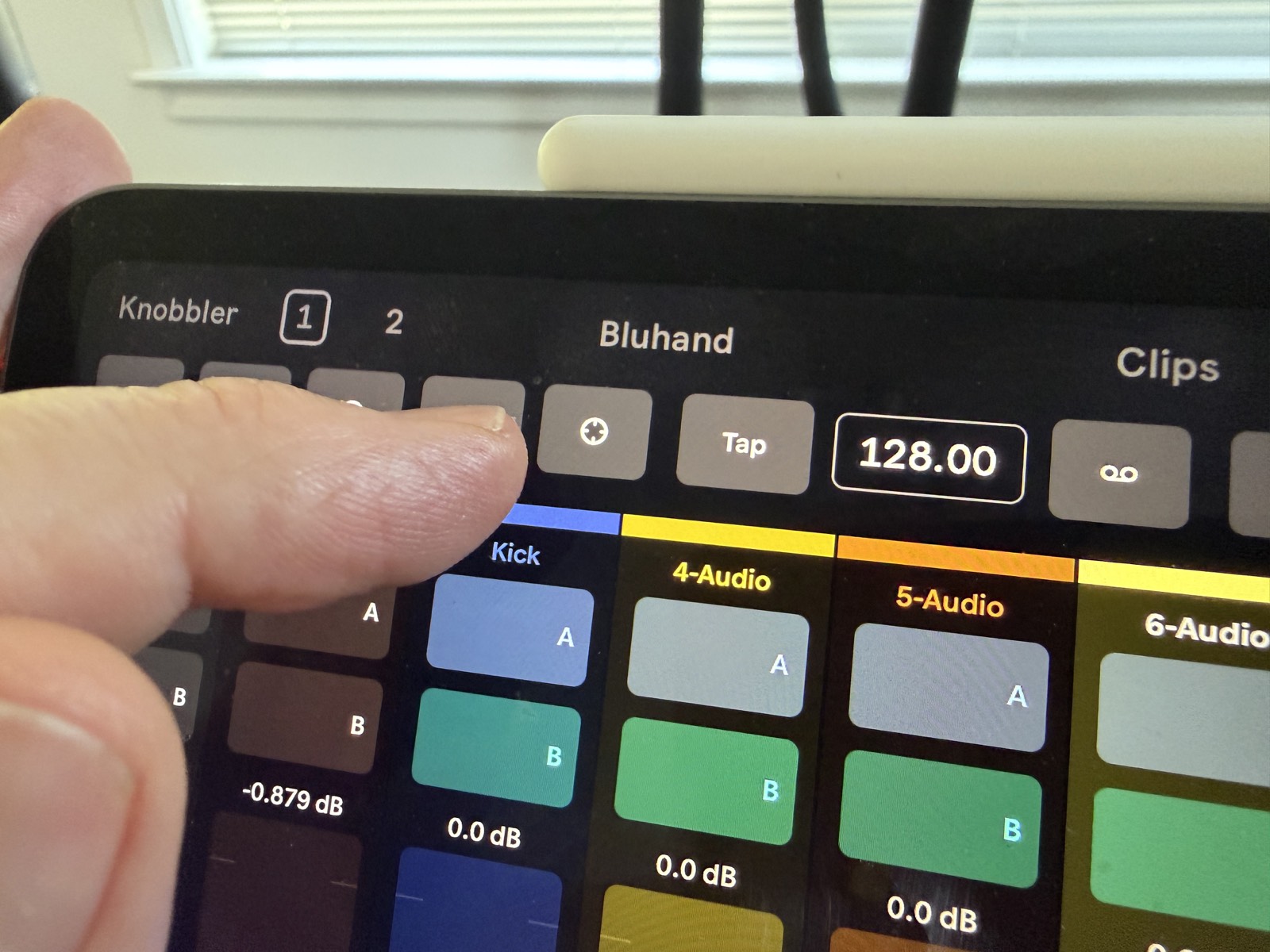
2. Pick a source
Every mappable control gets a green outline to show it can be a source. On the Mixer page, that's the volume, pan, send, mute, and main track crossfader:
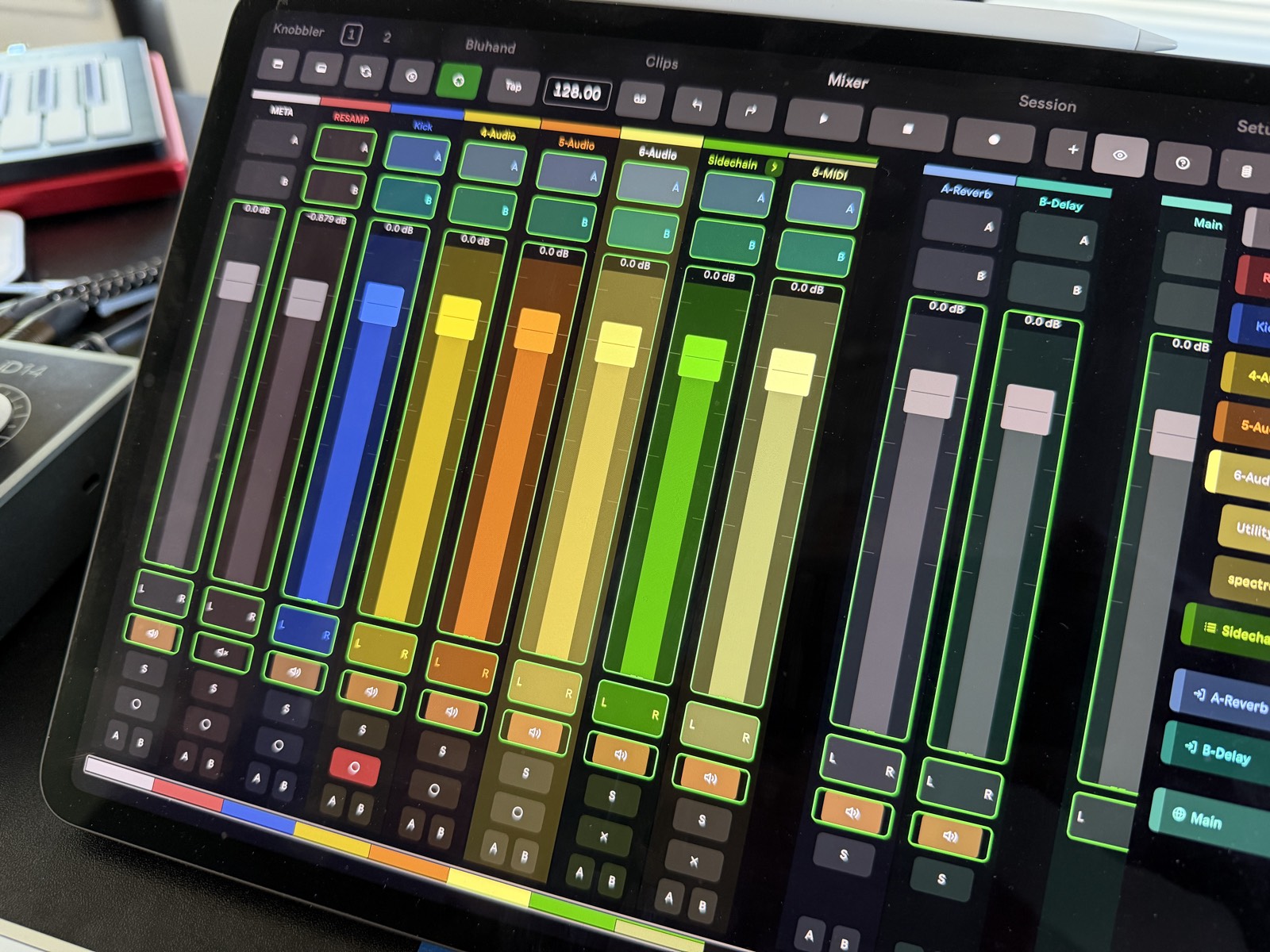
Tap the control you want to map. Here we're grabbing the 4-Audio track's volume. It will start blinking:
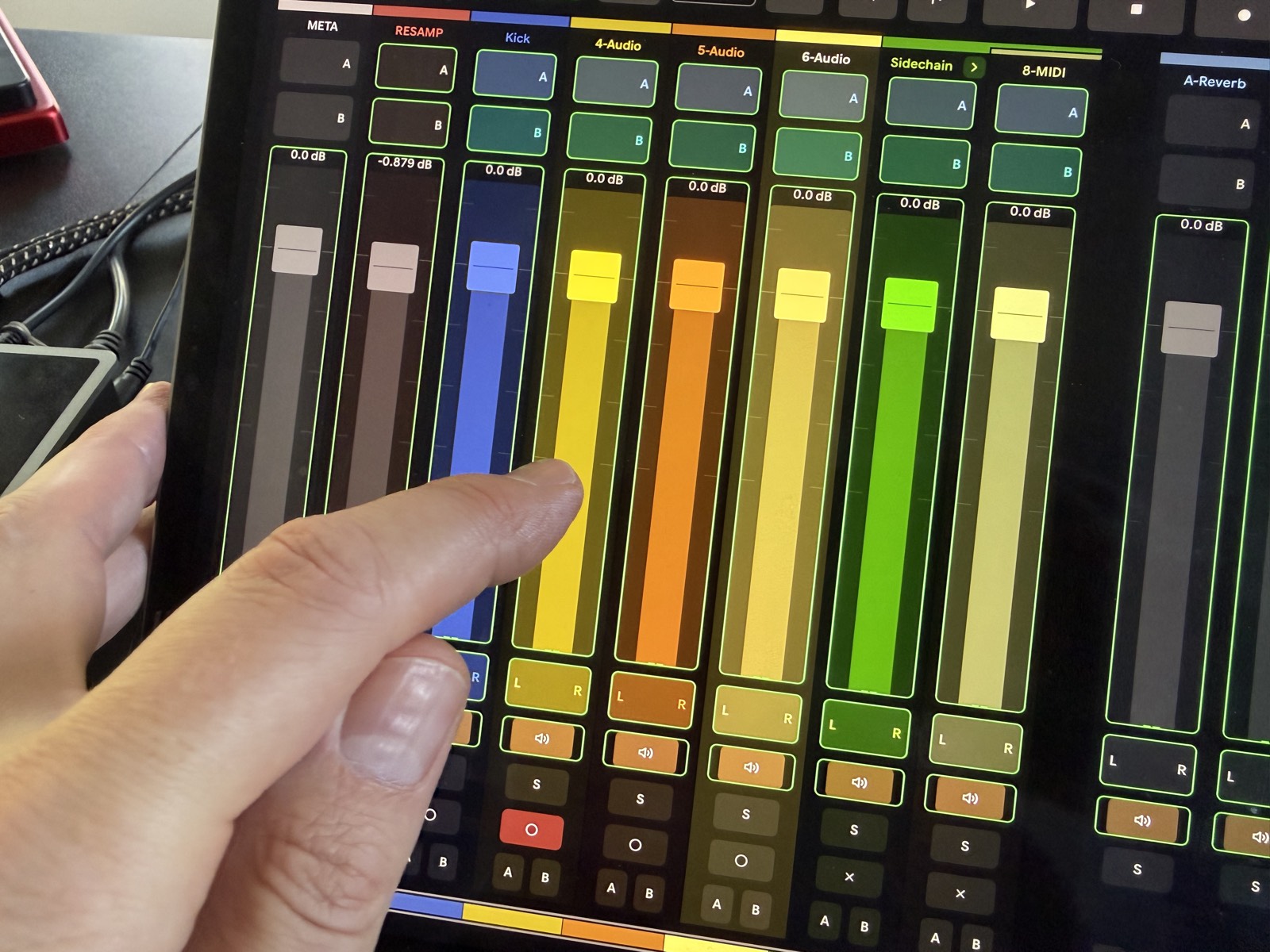
Bluhand device parameters work as sources too — just navigate to the Bluhand page while armed and tap the parameter slider you want:
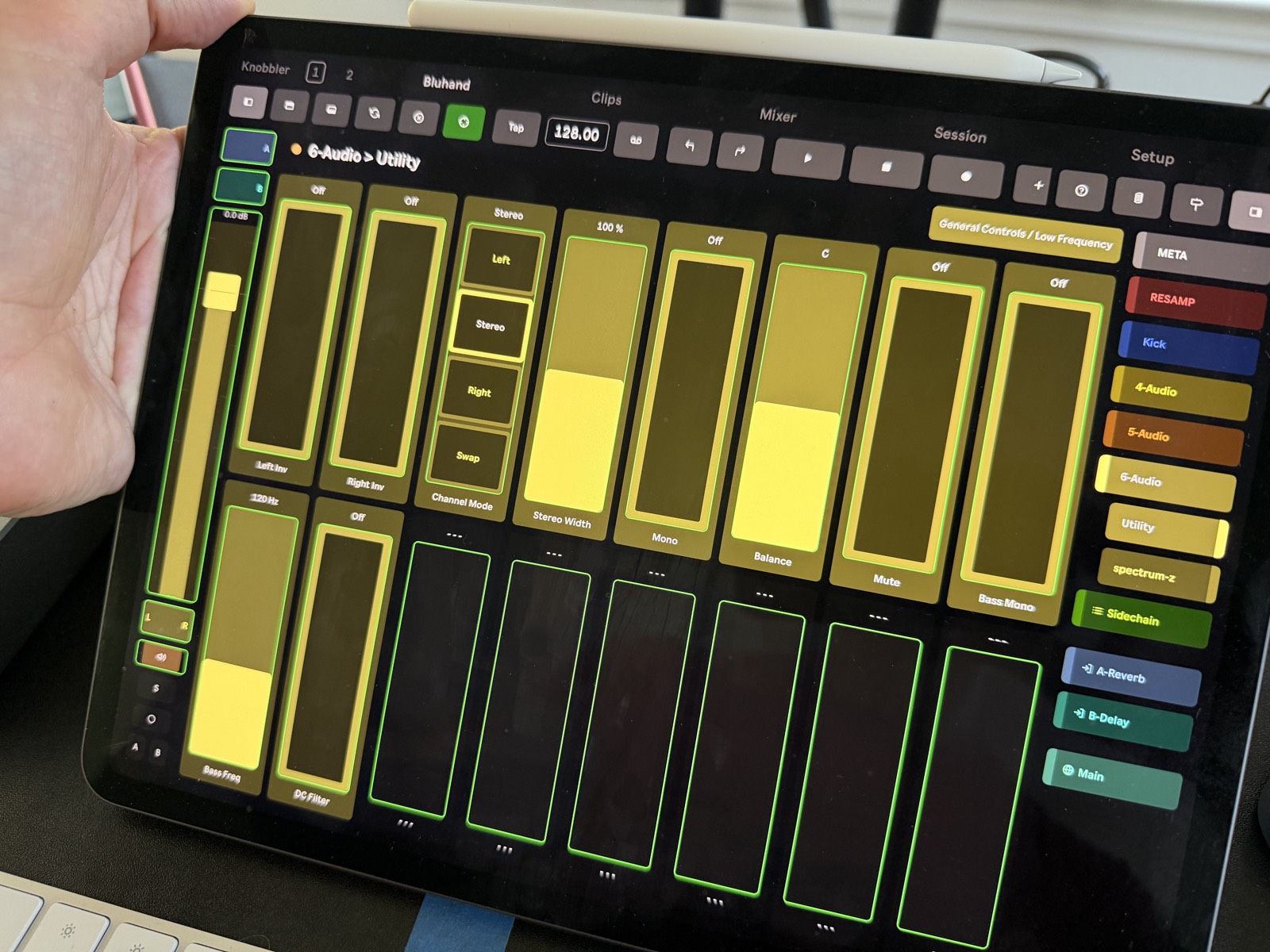
Shortcut: On the Bluhand page you can skip the Map button entirely — tap a
parameter's name to begin a mapping with that parameter as the source.
3. Go to a Knobbler page
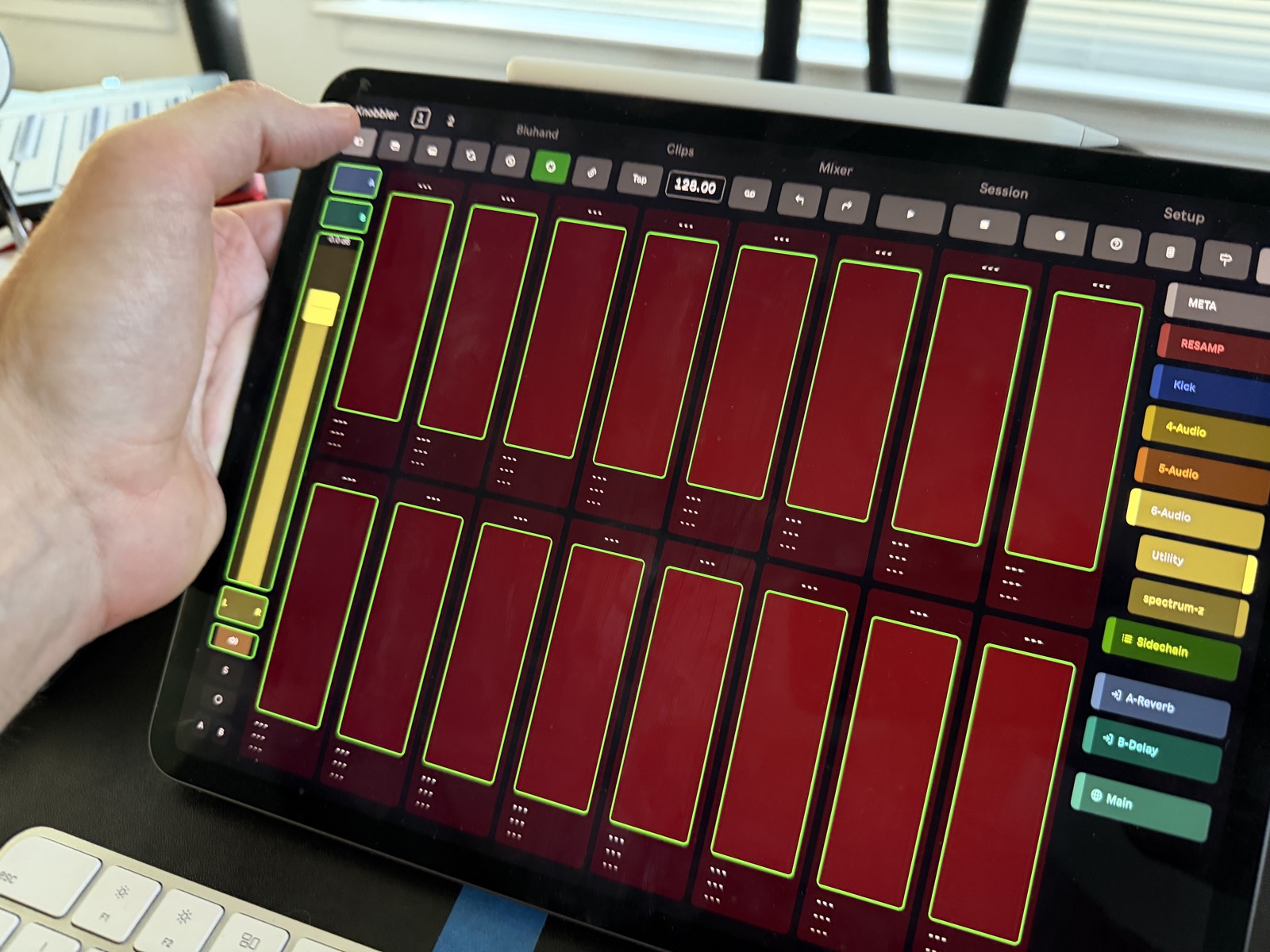
The Map button stays lit (armed) after you pick a source. Switch to a Knobbler page to choose where the control should go:
4. Pick a target slider
Valid target sliders are outlined in green. Tap the slot you want to map the source onto:
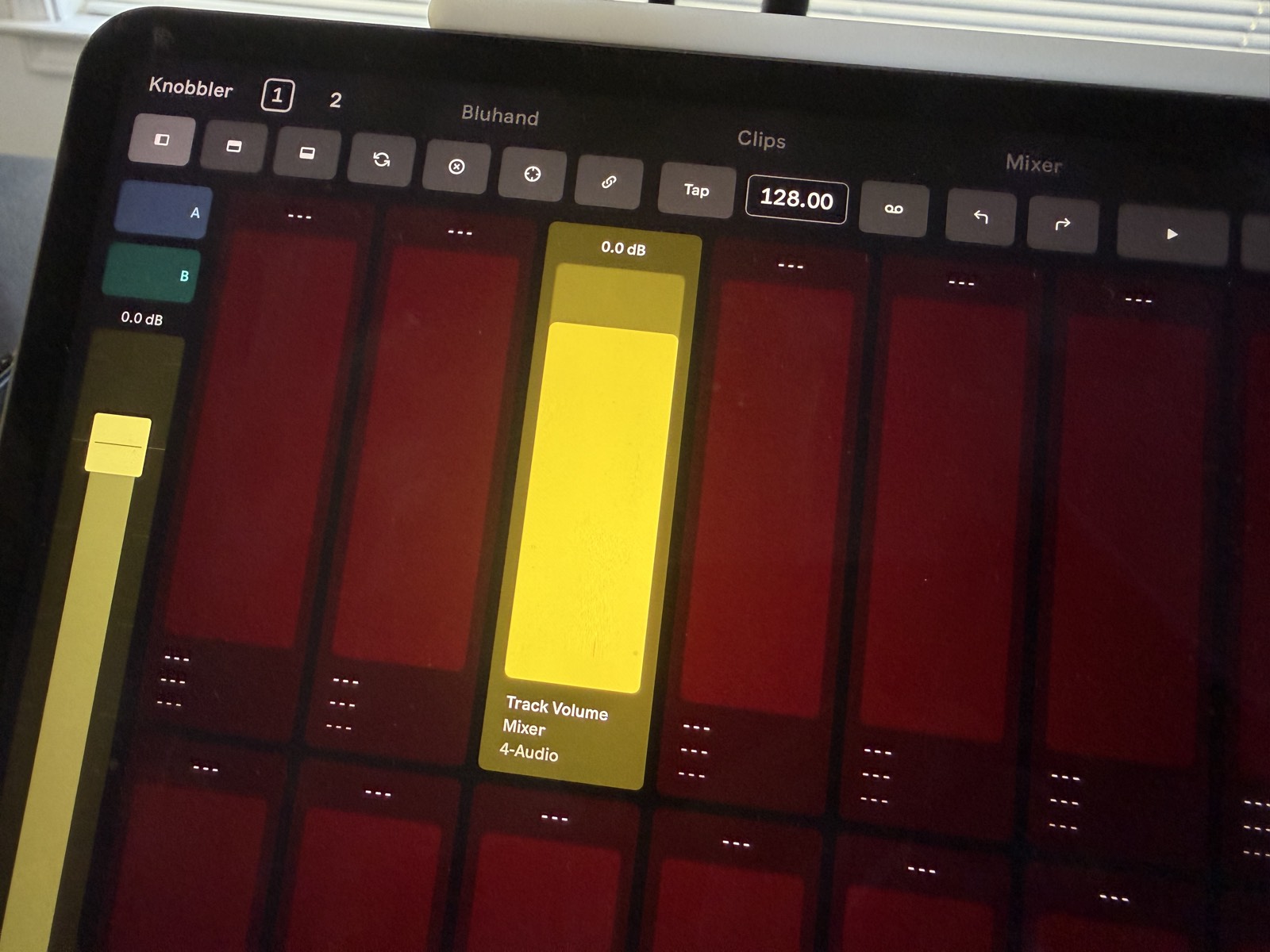
That's it — the slider is now mapped, labeled with what it controls, and colored to match its track. Mapping Mode turns off automatically.
Rearranging sliders with Swap
Mapping Mode also lets you swap two Knobbler sliders — pick up the mapping on one slider and drop it onto another to trade their positions. This is the fastest way to tidy up a page: group related controls together, move a frequently-used parameter to a more comfortable spot, or shuffle an XY pad without re-mapping anything.
Here's a Knobbler page with three controls — a teal slider, a blue XY pad, and a yellow slider:
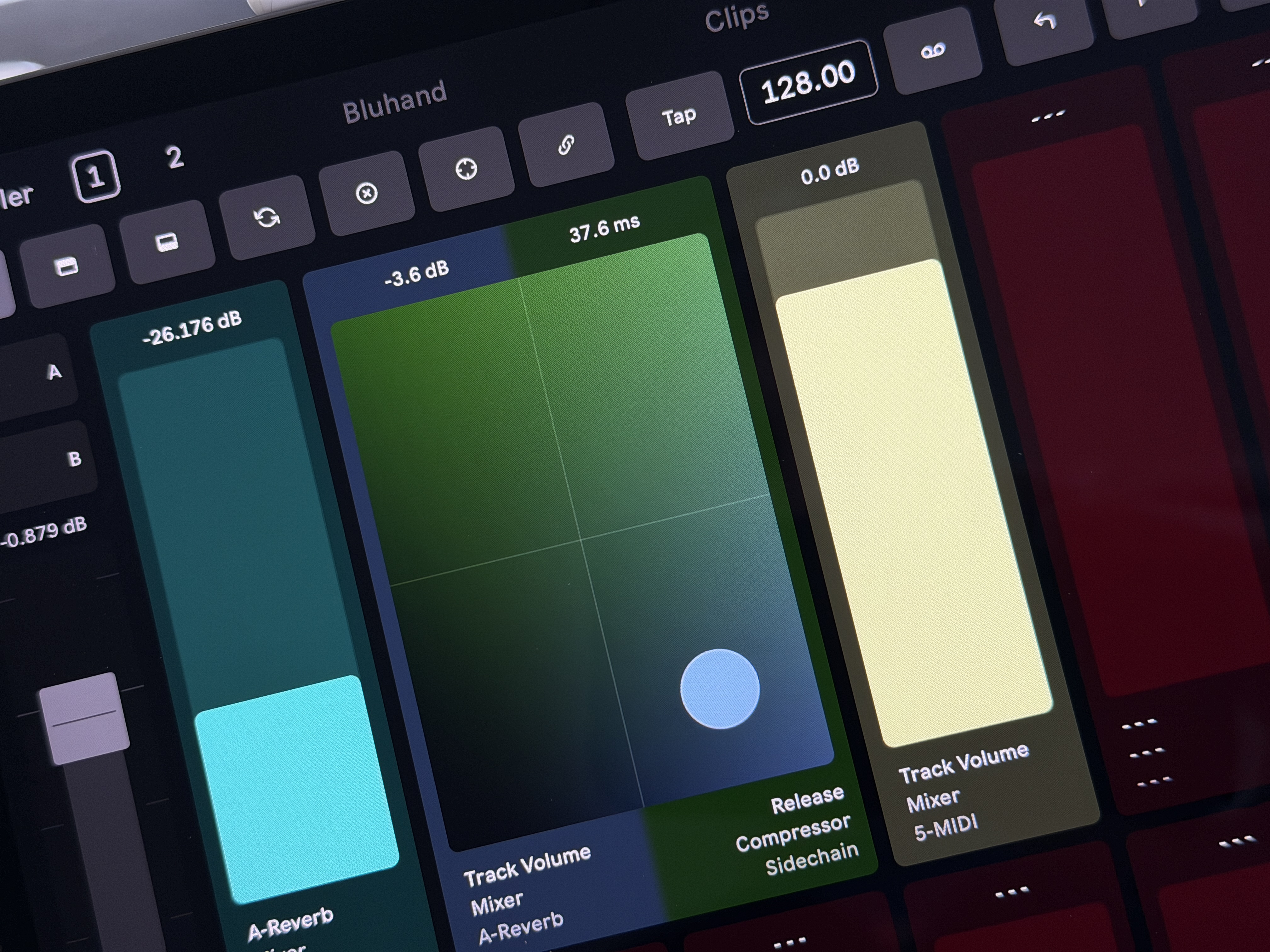
1. Enter Mapping Mode
Tap the crosshair (⊕) button in the toolbar.
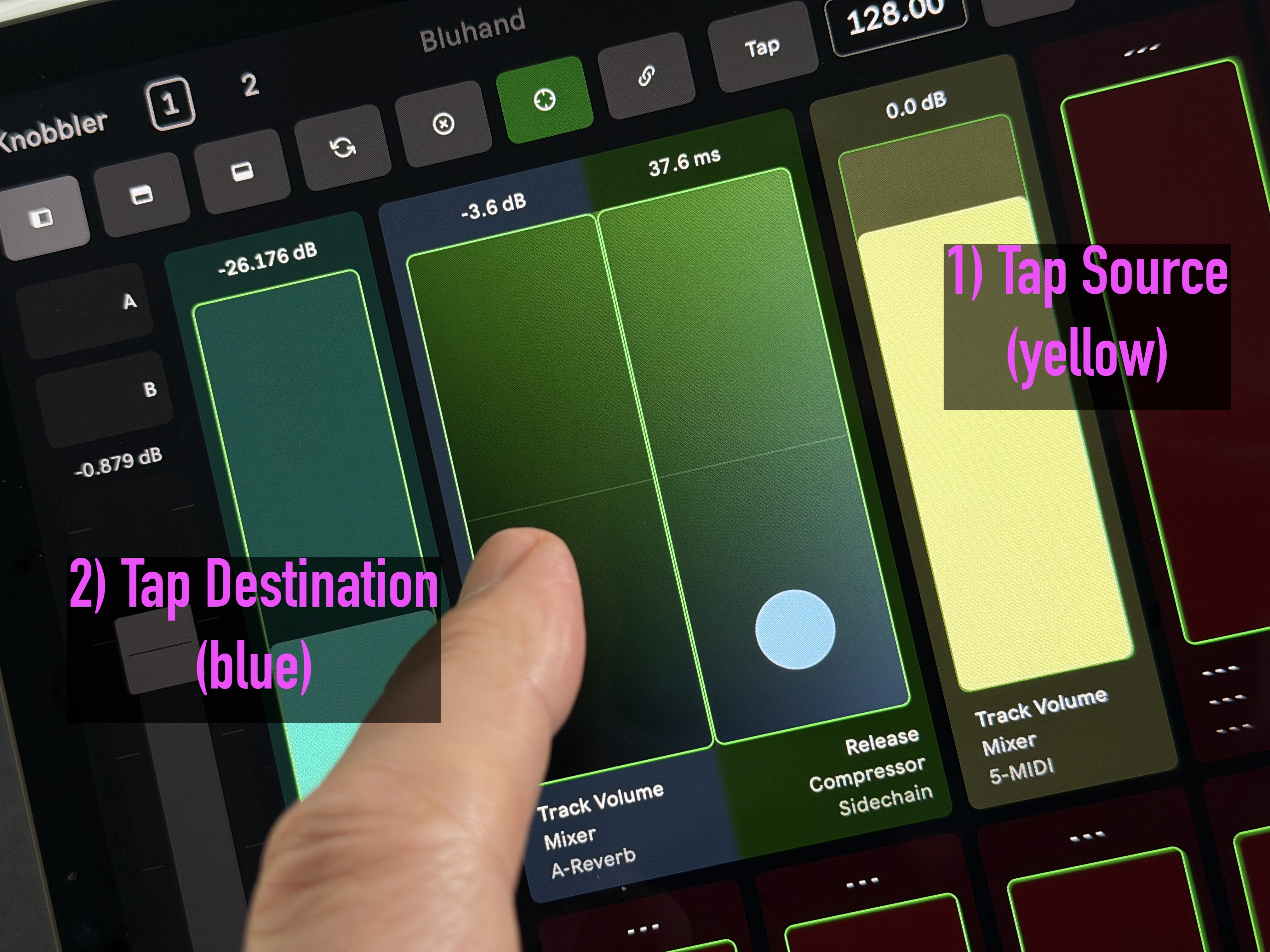
2. Tap the source, then the destination
Tap the slider you want to move — it gets a flashing green outline to show it's selected. Every valid destination shows a steady green outline; tap the one you want to swap it with.
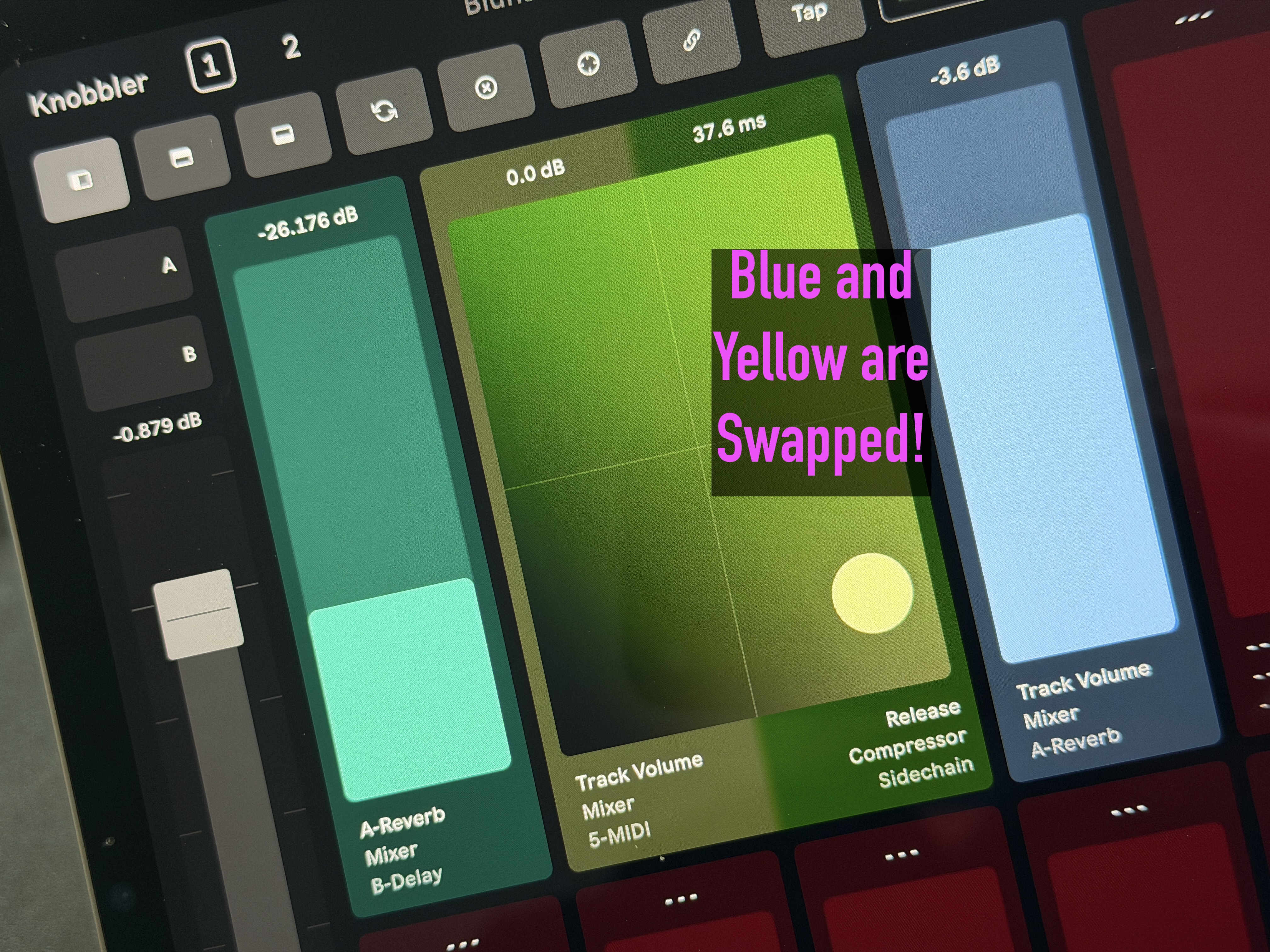
3. Done — the two are swapped
The source and destination trade places, keeping their labels, colors, and ranges. Mapping Mode turns off automatically.
Move vs. swap: if the destination slider is empty, this is a move — the
source ends up on the destination and its old slot is left empty. If both
sliders are mapped, it's a true swap.
XY pads survive a swap. Because an XY pad is just two slots grouped
together, swapping a parameter into one half of a pad keeps the pairing intact
— only the parameter shown changes. (A move that would leave a pad half-empty
splits the pad back into two separate sliders.)
Notes
- Tap the Map button again at any point to cancel and exit Mapping Mode without making an assignment.
- Mapping onto a slider that's already in use simply replaces the old assignment.
- Mapped controls behave exactly like any other Knobbler slider — the label, color, value string, and automation indicator all update to reflect the control you mapped.