 Knobbler4
 Visit #knobbler on Discord
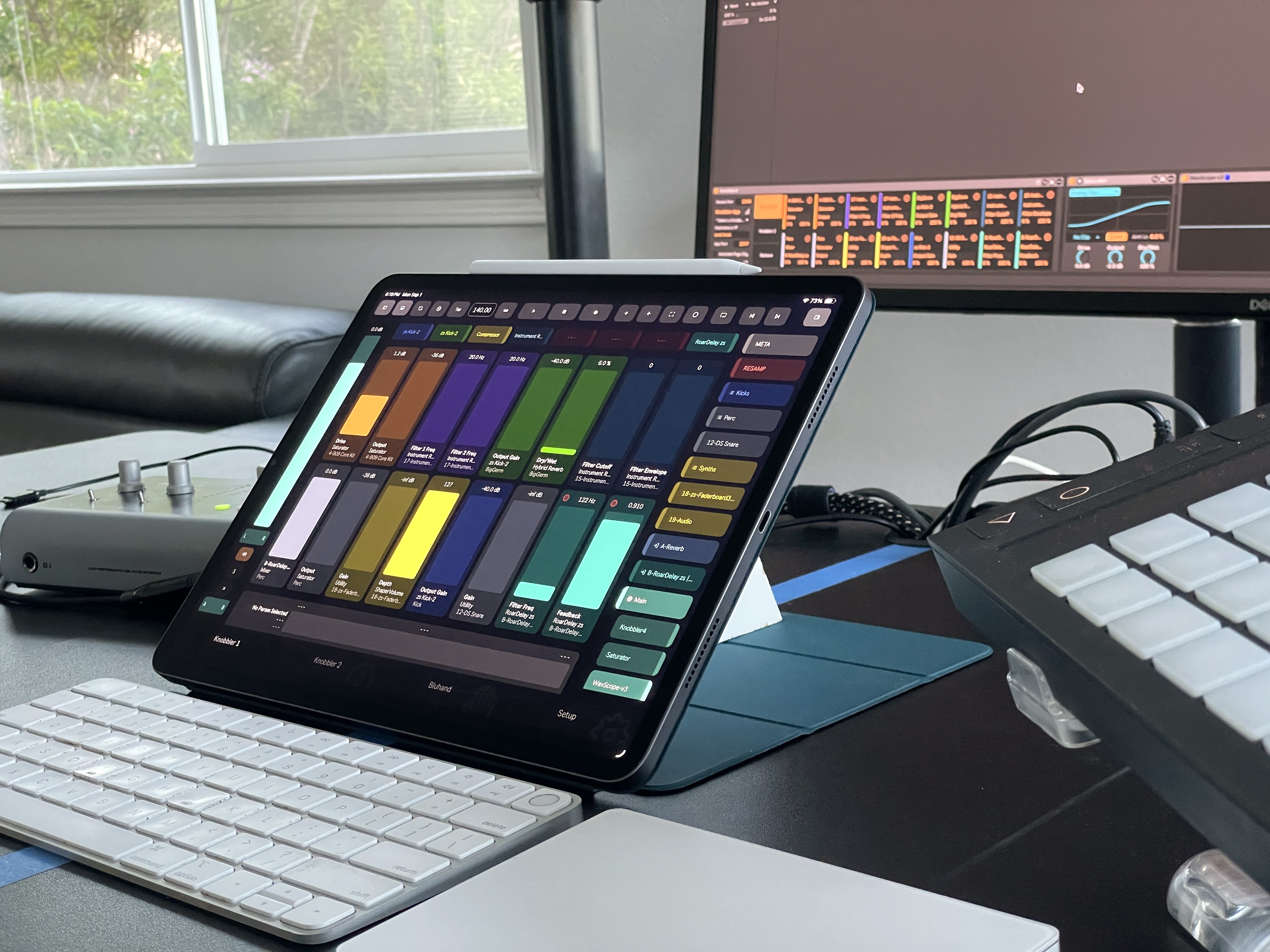
Sometimes you can't (or don't want to) put your Mac and tablet on the same WiFi network — you're at a venue, a practice space, or you simply want the rock-solid reliability of a cable. Knobbler works in these situations too.
There are three approaches, in rough order of convenience:
- A phone hotspot — tether both the Mac and the tablet to your phone's Personal Hotspot. Zero config, auto-discovery still works, and it travels anywhere.
- A direct USB connection between an iPad/iPhone and a Mac — rock-solid and wired, but you fill in two IP addresses by hand.
- An ad-hoc WiFi network created on the Mac — wireless with no router, but the most setup.
Phone Hotspot
If you have a phone with you, the simplest no-router option is to tether both your Mac and your tablet to the phone's Personal Hotspot. The hotspot puts both devices on the same private network and routes traffic between them — including the multicast discovery messages Knobbler uses — so this behaves just like a normal WiFi network. Auto-discovery works, and there are no IP addresses to type in.
-
Turn on Personal Hotspot on your phone (on iPhone: Settings → Personal Hotspot → Allow Others to Join).
-
Join that hotspot from both the Mac (WiFi menu → your phone's name) and the tablet (Settings → WiFi → your phone's name).
-
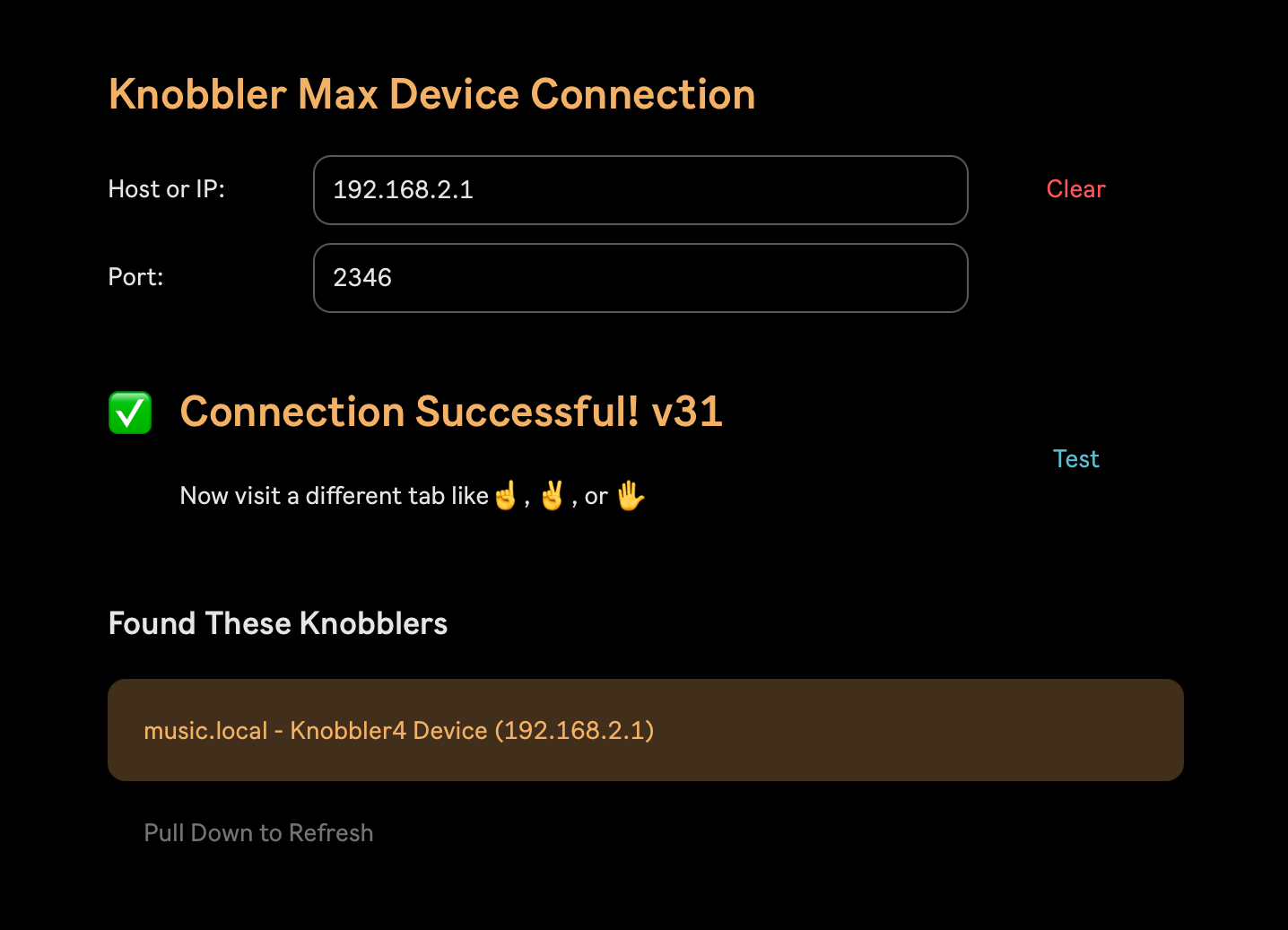
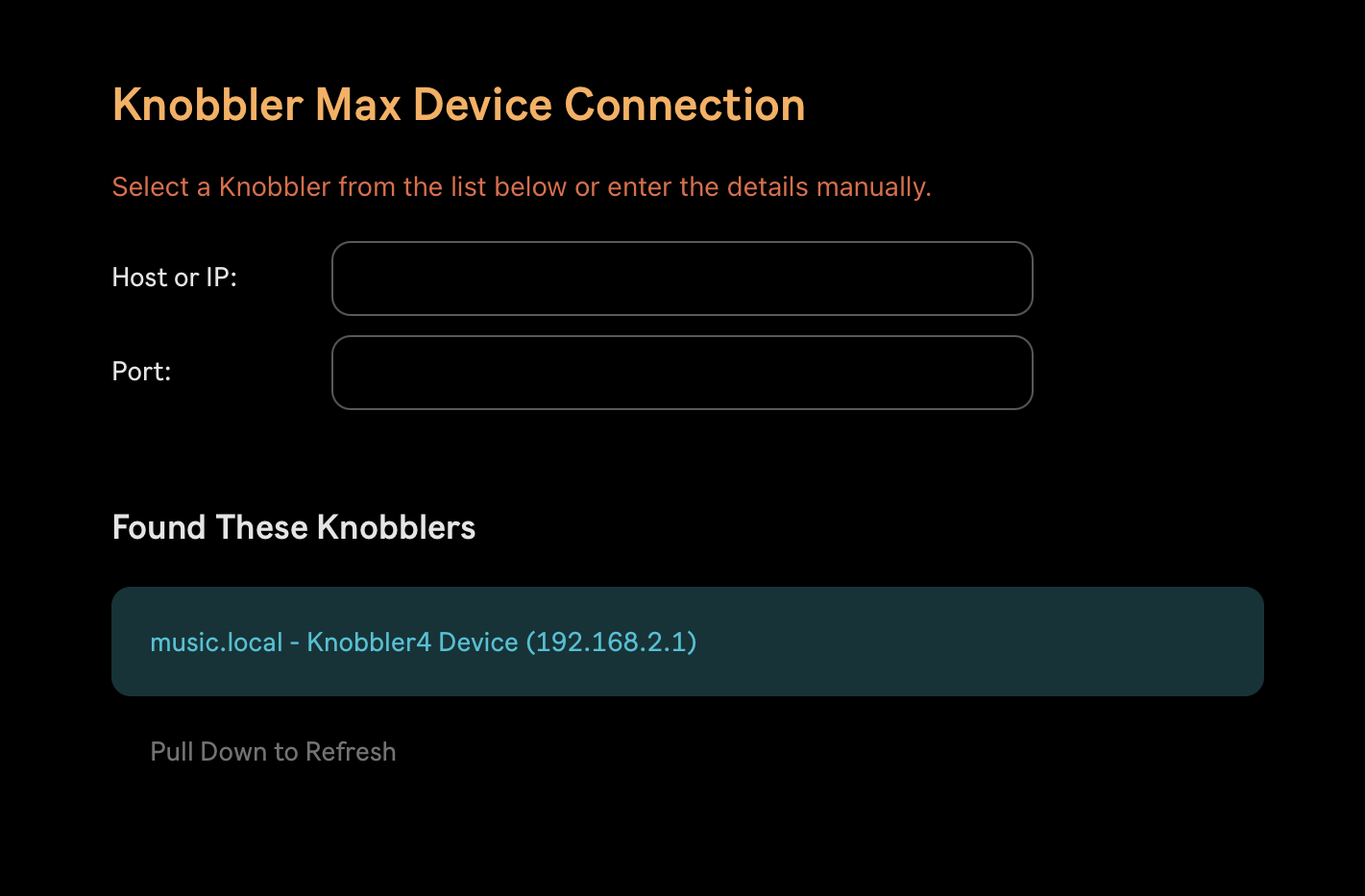
Add Knobbler to your Live Set, open the Knobbler app on the tablet, and go to the Setup page. It scans for and finds the device on the Mac automatically — select your Mac under "Found These Knobblers" and you're connected.
Tip: this works without any cellular data plan or signal — the phone is just
acting as a local router between your two devices, so nothing actually needs to
reach the Internet. It's a great fallback at venues with no usable WiFi.
If discovery comes up empty: a few phone-hotspot configurations isolate the
connected devices from each other, so the Mac and tablet can't see one another
even though both are online. If the scan finds nothing, just fall back to the
manual-IP method — read each device's hotspot IP
and type them in by hand, exactly like the USB setup below.
USB Connection (recommended)
With modern iOS and macOS, simply connecting an iPad or iPhone to a Mac with a USB
cable creates a private 169.254.x.x ("link-local") network between the two
devices automatically — no Internet Sharing setup required.
Because the auto-discovery features of Knobbler don't operate over this link-local network, you'll fill in the two IP addresses manually. It's a one-time setup.
-
Connect the iPad or iPhone to the Mac with a USB cable.
Note: after plugging in the cable, it can take up to 30 seconds for the computer to negotiate the link-local network and assign the IP addresses. If the addresses below don't appear right away, wait a moment and check again.
-
Find the tablet's address. Open the Knobbler app and go to Setup → Connection. The app displays its own
169.254.x.xaddress at the top of the panel, labeled "This device:".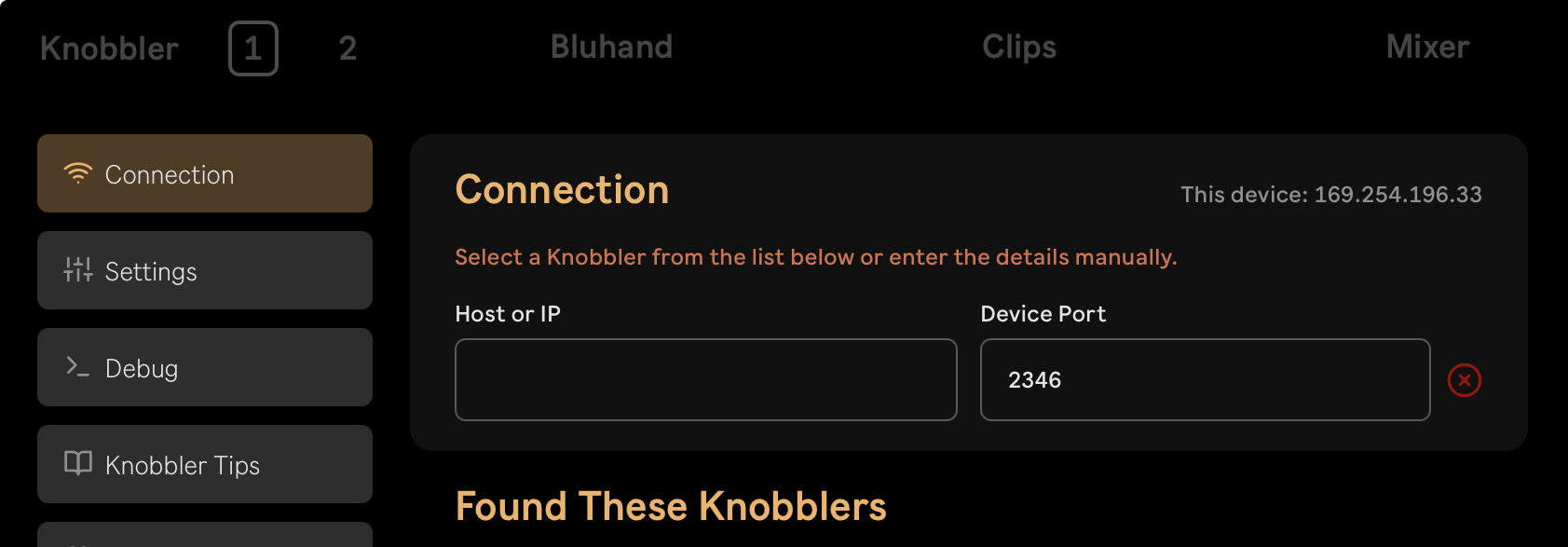
-
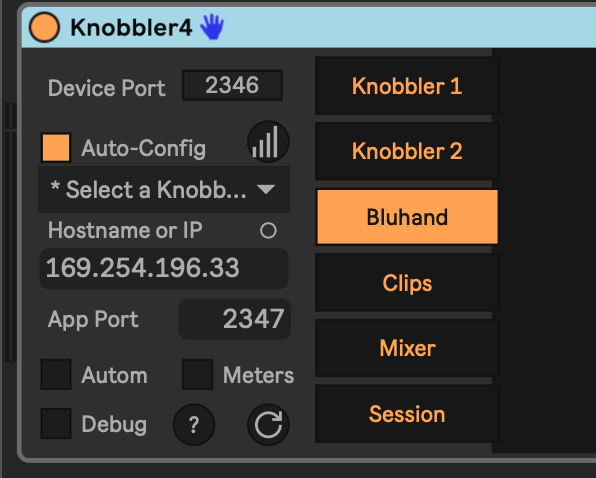
Point the Live device at the tablet. In the Knobbler4 device in Ableton Live, type the tablet's address (from step 2) into the Hostname or IP box, and set App Port to 2347. (Leave the device's own Device Port at 2346.)
-
Find the Mac's address. Open Terminal on the Mac and run:
ifconfig -a | grep 169.254Note the
169.254.x.xaddress it prints (the value afterinet).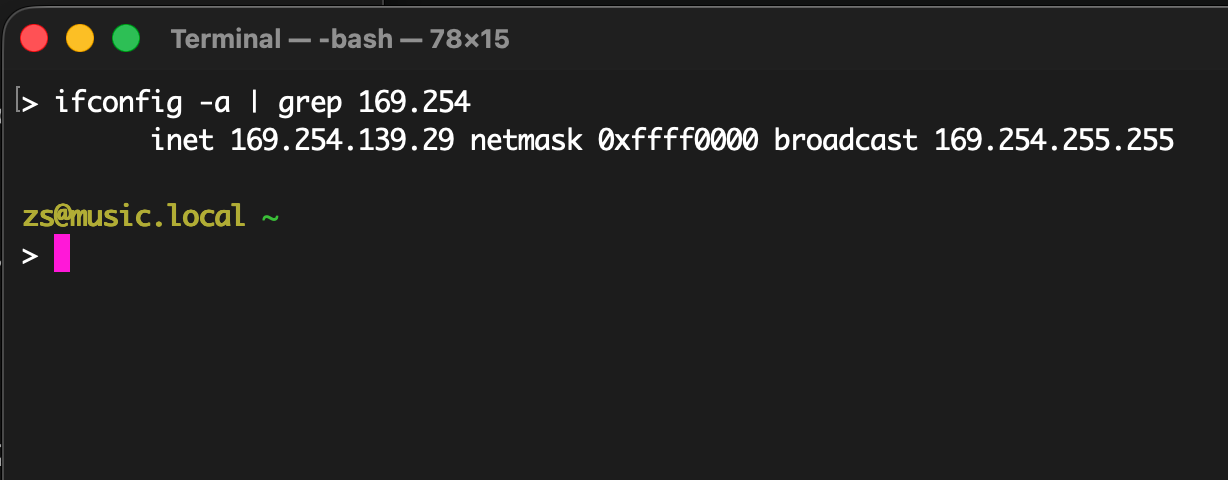
-
Point the app at the Mac. In the Knobbler app, type the Mac's address (from step 4) into the Host or IP box. Leave the device port at its default, 2346.
-
Press Test in the app to exercise the connection. A green Connected banner confirms the link is working.
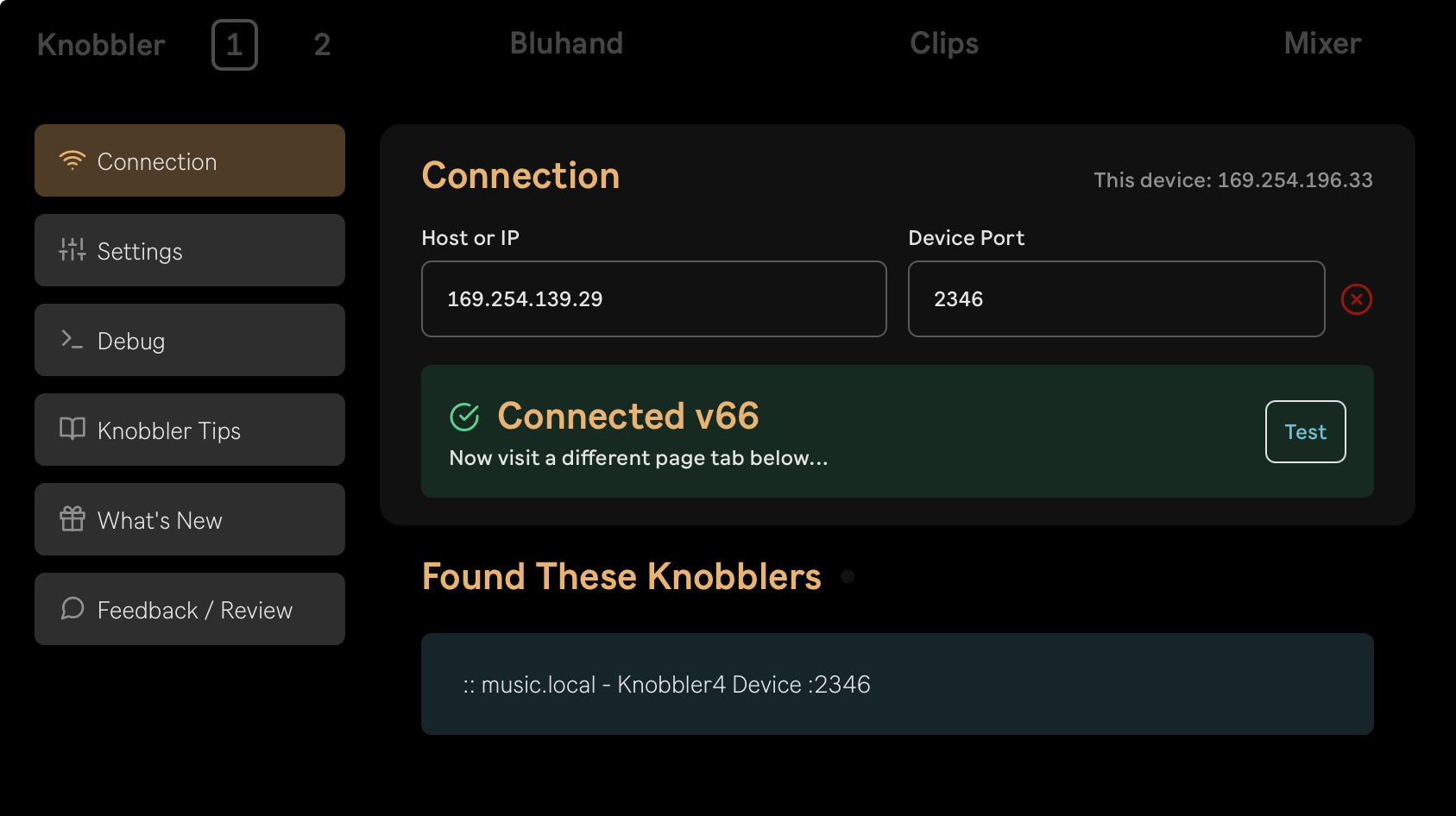
At this point Knobbler should be fully functional over the USB cable.
Tip: the two ports are not the same on purpose — the Live device sends to the
tablet on 2347, and the tablet sends to the device on 2346 (the default).
If Test fails, double-check that you didn't swap the two addresses or ports.
Ad-Hoc WiFi Network
If you'd rather connect wirelessly but there's no WiFi network to join, you can create an ad-hoc WiFi network on your Mac that your iPad can join.
These instructions are Mac-specific. If you have a Windows machine and can contribute instructions, please let me know.
(originally from this post on Mac StackExchange.)
-
Run the following commands, one-by-one in Terminal:
sudo networksetup -createnetworkservice AdHoc lo0 sudo networksetup -setmanual AdHoc 192.168.1.88 255.255.255.255 sudo networksetup -setmanual AdHoc 127.0.0.1 255.255.255.255 -
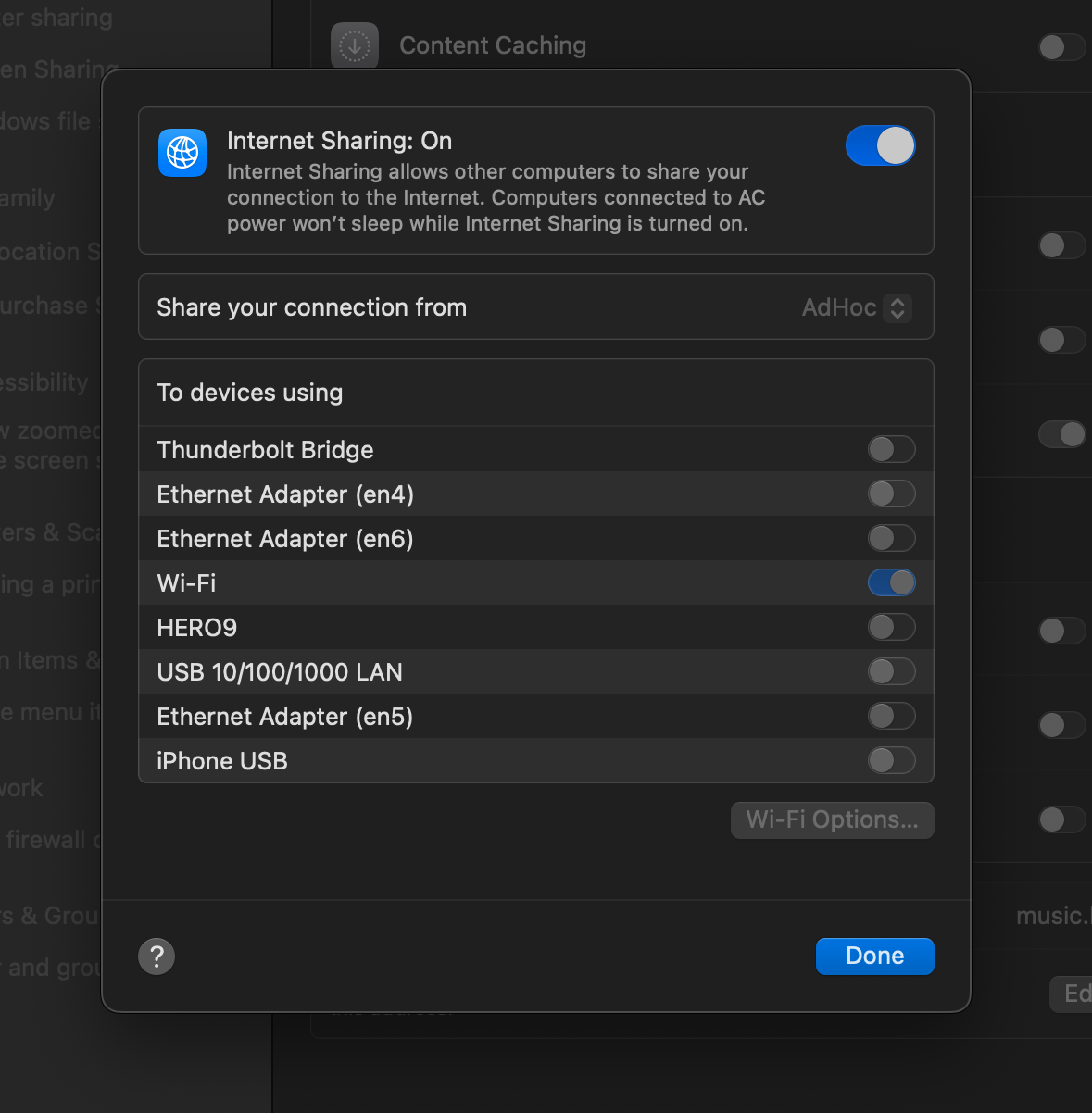
Configure sharing settings:
- Open System Settings
- Navigate to Sharing
- Select Internet Sharing (i)
- Set "Share connection from" to "AdHoc"
- Set "To devices using" to "Wifi"
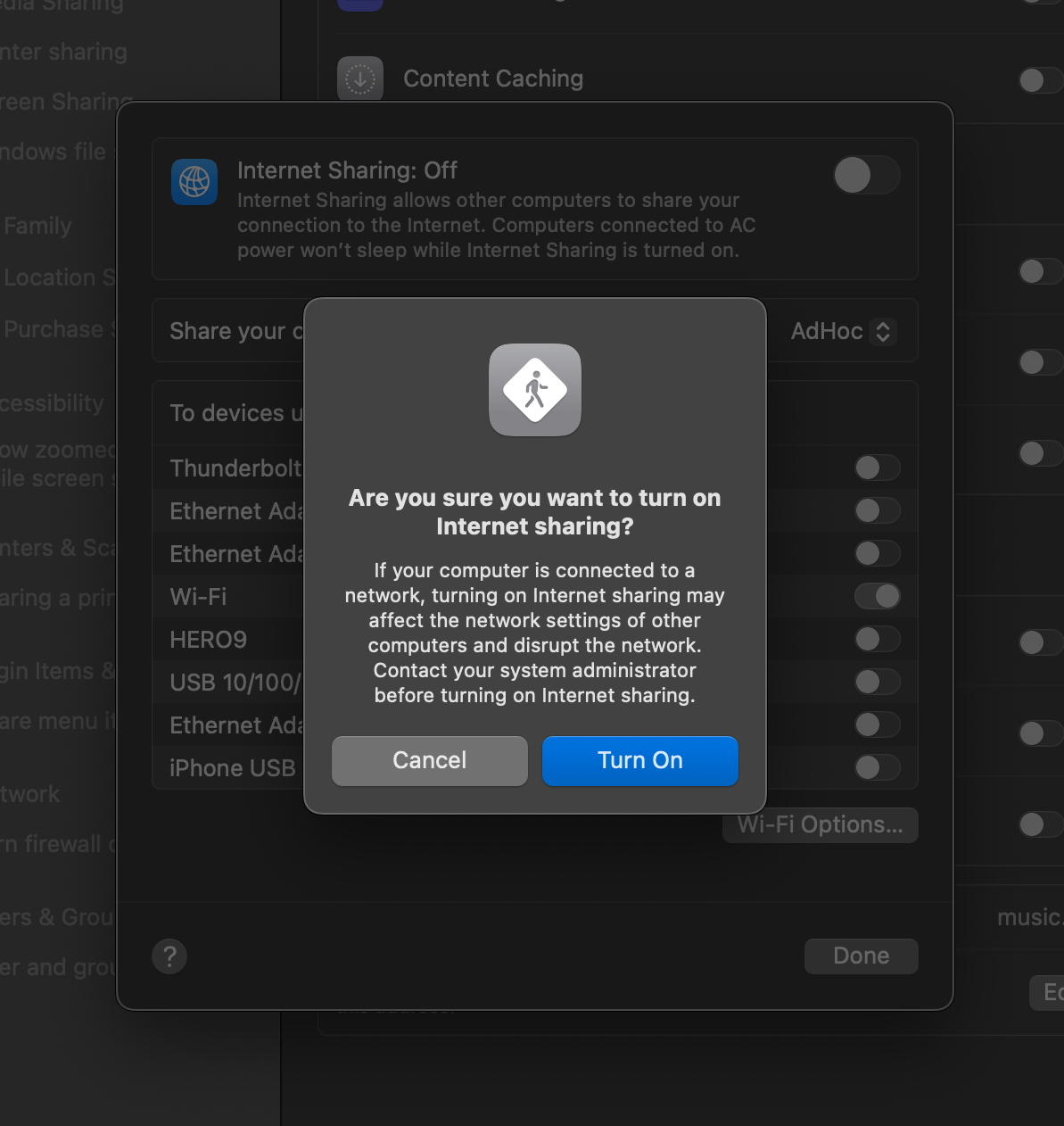
- Configure the new WiFi network with a name, channel, and password
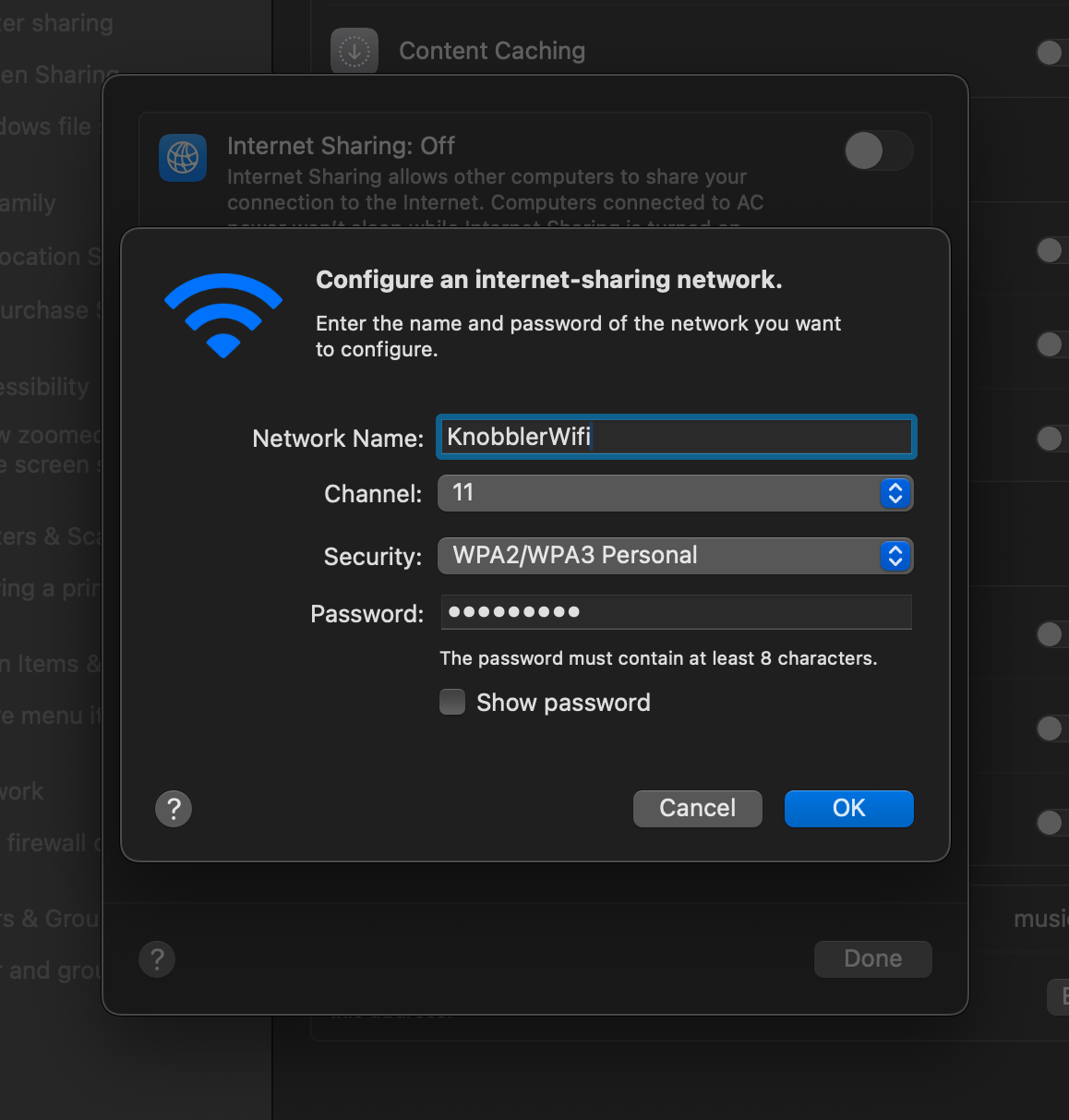
- Ensure Internet Sharing is switched On
-
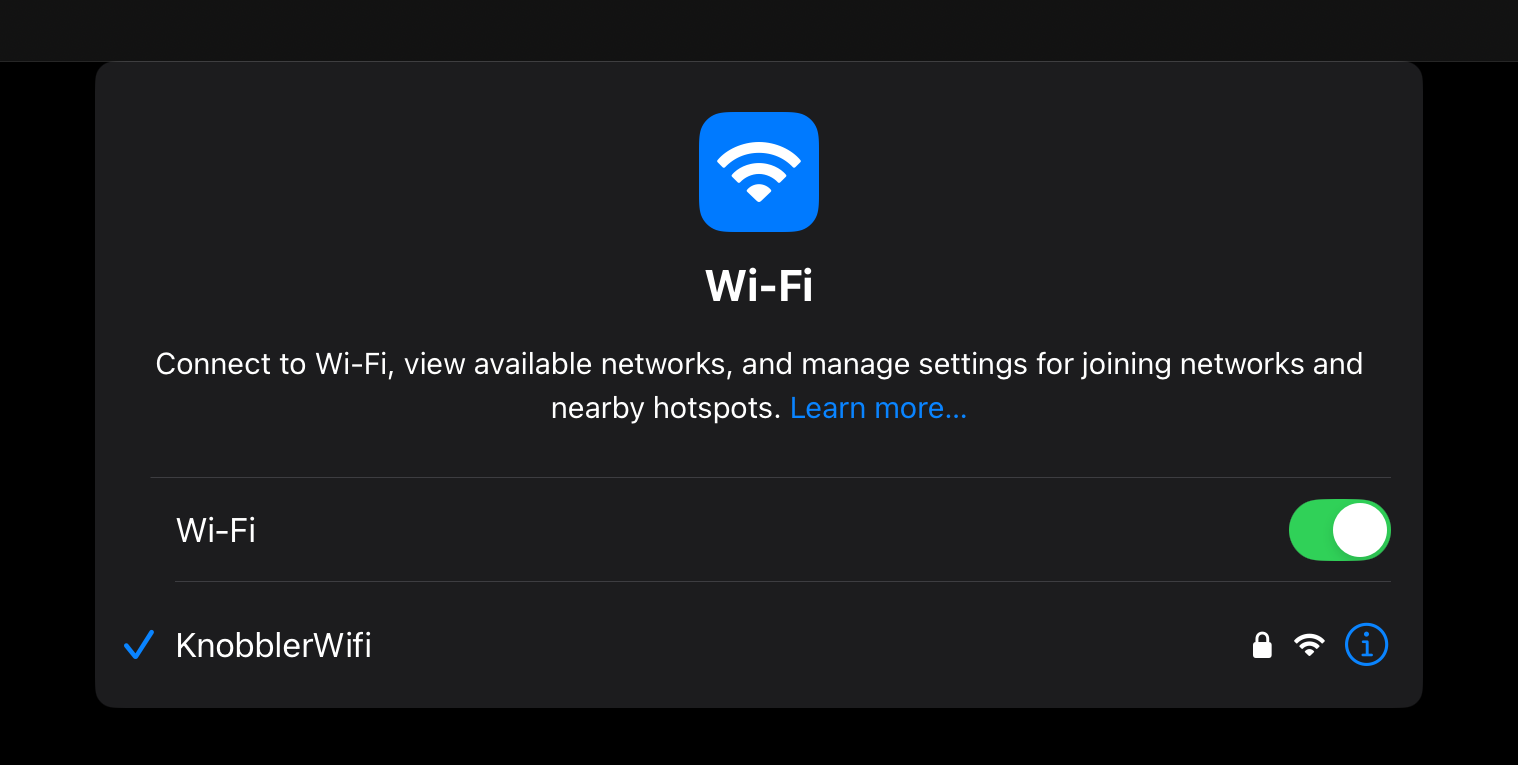
Join the WiFi network you just created on your iPad
-
Tap the (i) icon next to the WiFi connection on your iPad and note the iPad's IP address. In the screenshot below, it is
192.168.2.4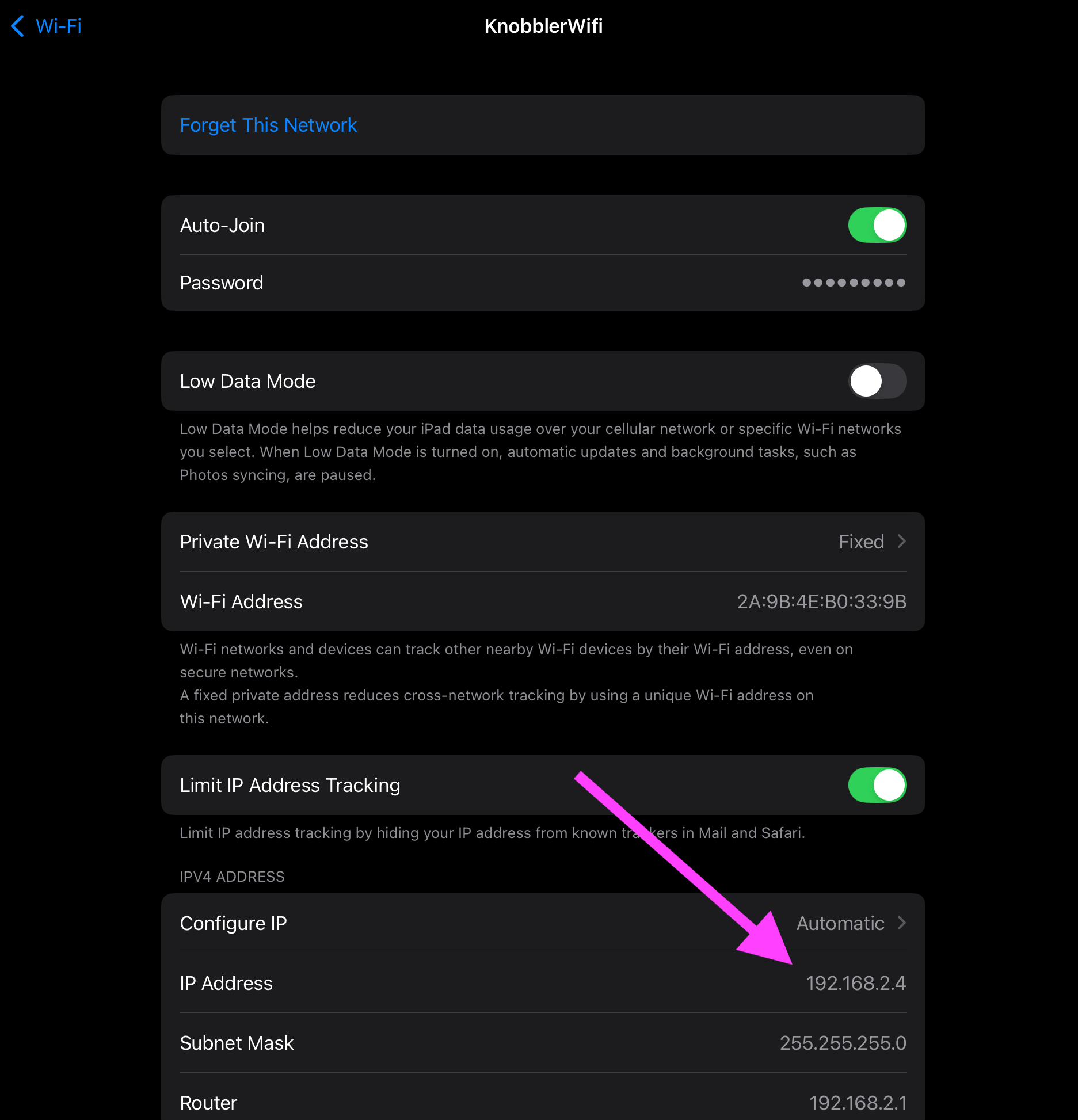
-
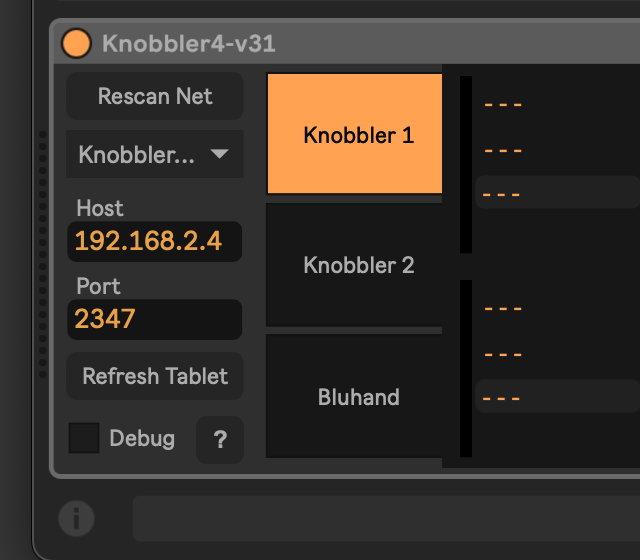
Add Knobbler to your Live Set and manually fill in the iPad's IP address.
-
Open the Knobbler app on the iPad and go to the Setup page. It should scan for and detect the device on the Mac.
-
Select your Mac in the "Found These Knobblers" section. You should get a "Connection Successful!" message.